Create an Event Stitching project

Use this guide to create an Event Stitching project from event source models.

Event Stitching builds an event profile graph from event records and the identifiers carried by those events. The main output is dinmo_stitched_profile_id, which lets you attach processed events to a behavioral profile.

If you are not sure whether your event models are ready, start with Prepare event data for Event Stitching.

Event Stitching project type selection
Select Event Stitching when creating an Identity Resolution project.
Prerequisites

Before starting, make sure you have:

  • access to a DinMo workspace with Identity Resolution enabled

  • a connected source with event models

  • one or more event source models in the same source

  • stable primary keys on each event model

  • a standard timestamp field on each event model

  • a partition or window column that lets DinMo process bounded event windows

  • useful event identifiers such as user ID, account ID, email, anonymous ID, device ID, cookie ID, session ID, click ID, or IP address

  • write permissions on the output dataset or schema used for identity outputs

Event Stitching processes source models and writes output tables in the connected source.

Wizard flow

Step
What you do

1. Scope

Select the source, event models, identifiers, and normalization.

2. Mapping

Pick the event partition column for each model and map source fields to identifiers.

3. Identifier policy

Set priority, anchor behavior, limits, stitching lifetime, and blocked values.

4. Finalize

Name the project, add a description, choose the schedule, and create the project.

After creation, the project detail page exposes five tabs: Overview, Runs, Policy, Setup, and Quality.

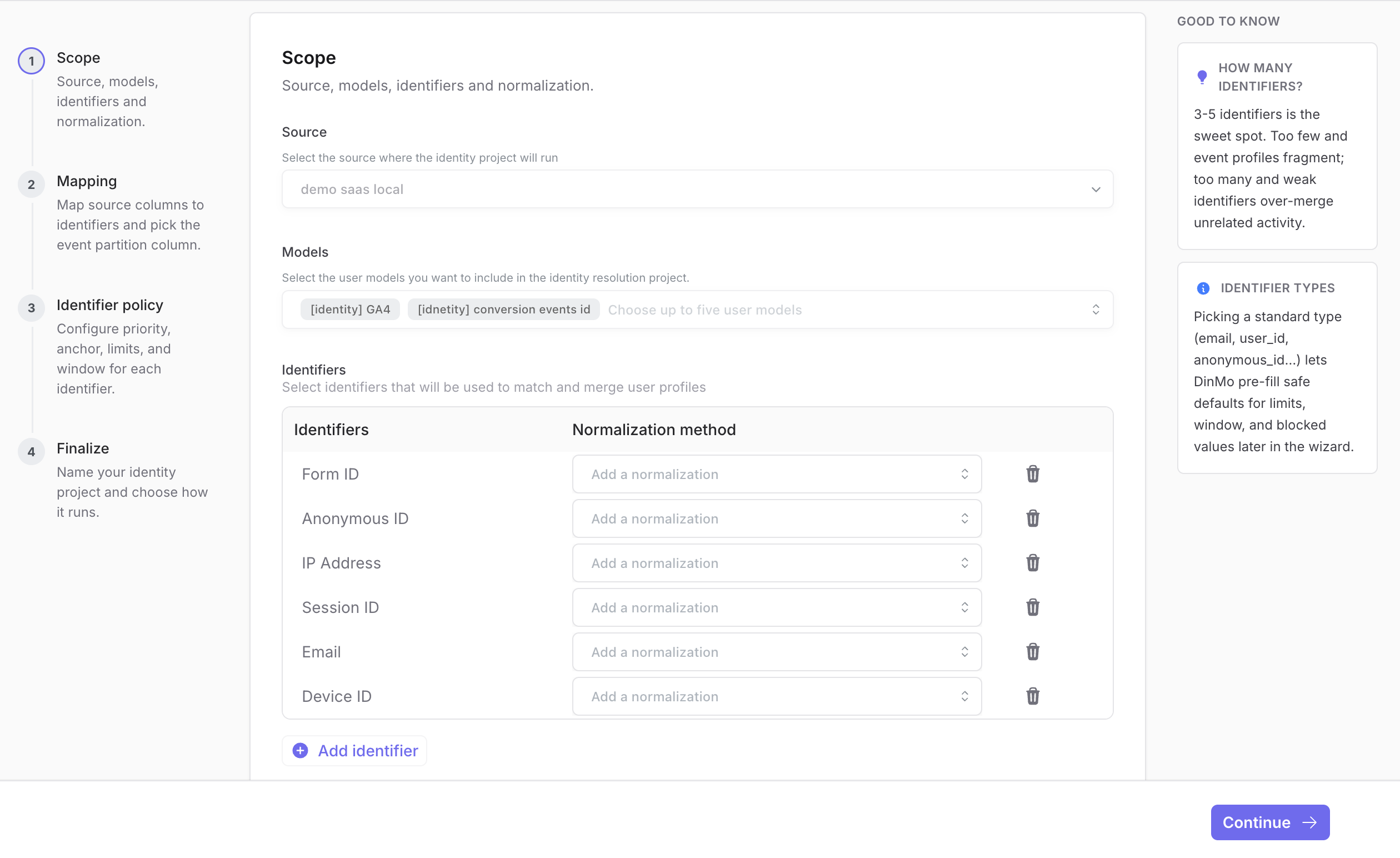
Step 1: Scope

Choose the source that contains the event models you want to stitch.

Event Stitching Scope step
Select the source, event models, identifiers, and normalization rules.
In this step, select:

Field
What to choose

Source

Connected source where the Event Stitching project will run.

Models

Up to five event models to process together.

Identifiers

Logical event identifiers available across the selected models.

Normalization

Cleanup rules such as trim, case-insensitive matching, or numeric-only matching.

Good event models include:

  • page views

  • sessions

  • purchases

  • app events

  • product usage events

  • support interactions

  • messaging or campaign events

Avoid profile-like tables such as CRM contacts, ecommerce customers, subscribers, and account records. Event Stitching expects event-grain models.

Step 2: Mapping

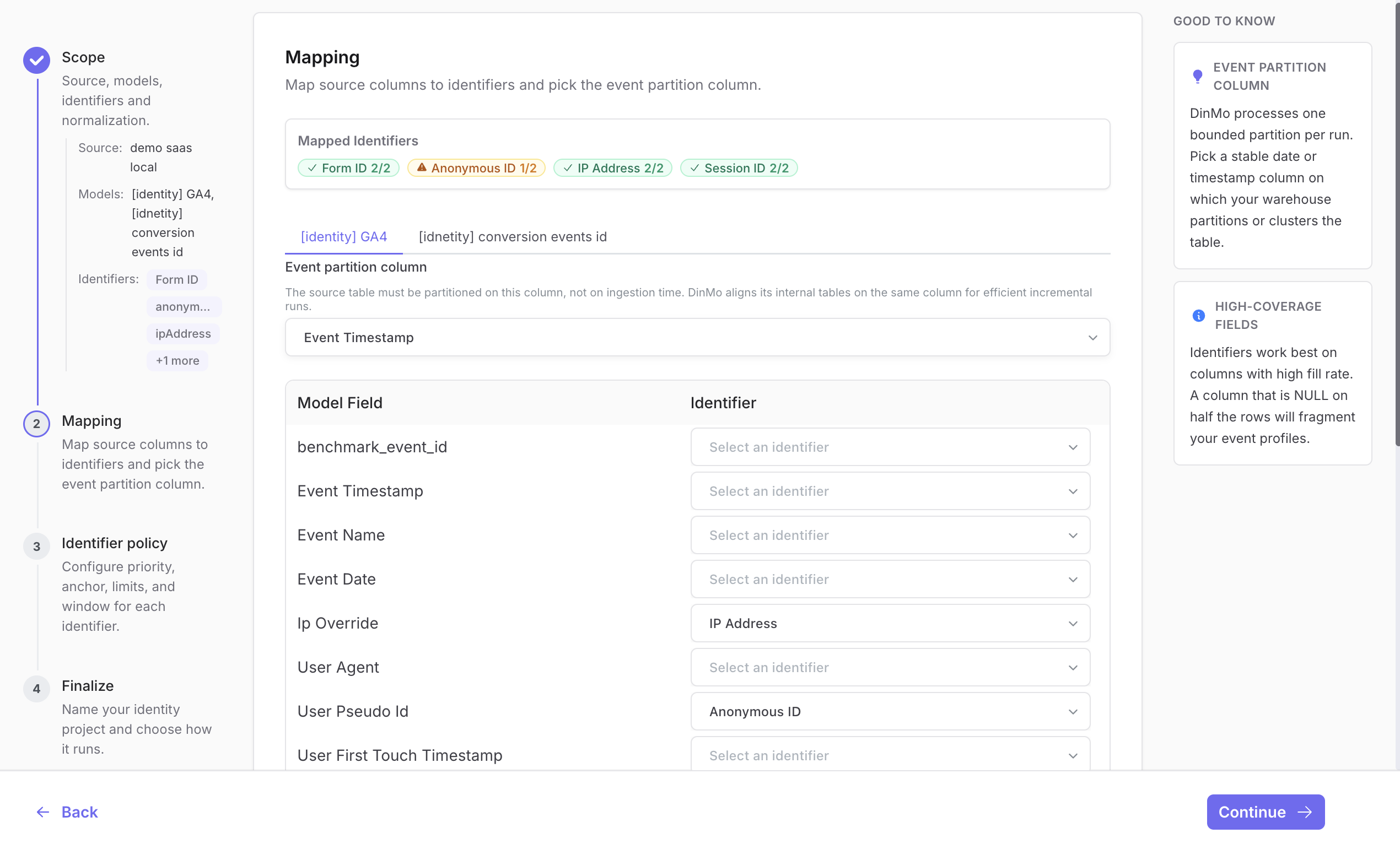
For each selected event model, use the model tab to pick the event partition column and map physical fields to logical identifiers.

Event Stitching Mapping step
Choose the event partition column and map model fields to identifiers for each selected model.
Field
Description

Event partition column

Date or timestamp field used to select bounded event windows. The source table should be partitioned on this column, not on ingestion time.

Model field

Physical column present in the event model.

Identifier

Logical Event Stitching identifier that the field should feed.

DinMo processes all selected models through the same logical Event Stitching project. Each model can use different physical column names, as long as they map to the same logical identifiers.

The event partition column should match the way events are naturally processed in your warehouse. For daily processing, use a timestamp or date that lets DinMo select complete day windows without scanning unrelated history.

Identifier mapping examples

Map each physical event field to a logical Event Stitching identifier.

Common mappings:

Event field example
Logical identifier

user_id, customer_id, account_id

User ID, Customer ID, Account ID

email, email_hash, phone

Email, Email Hash, Phone

anonymous_id, cookie_id, device_id

Anonymous ID, Cookie ID, Device ID

session_id

Session ID

gclid, fbclid, gbraid, wbraid

Click ID

ip_address

IP Address

Each source model can use different physical column names. The logical identifier is what DinMo evaluates across all event sources.

Map only fields that are useful for stitching or audit. Do not map campaign fields, URLs, product names, or arbitrary attributes as identifiers unless they are intentionally used as identity evidence.

Step 3: Identifier policy

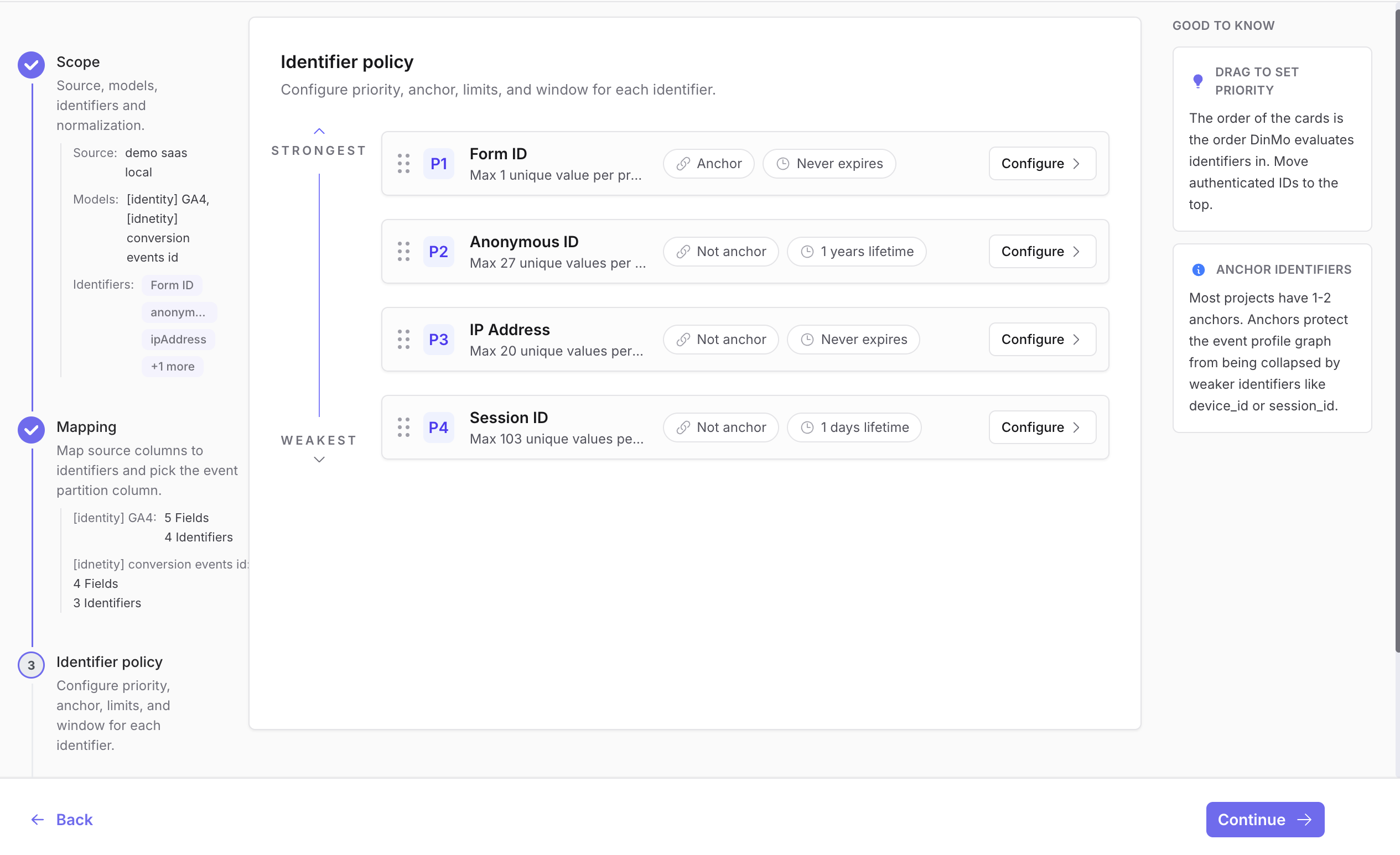
The identifier policy controls how events can connect.

Event Stitching Identifier policy step
Order identifiers from strongest to weakest, then configure anchors, limits, stitching lifetime, and blocked values.
Drag identifier cards to set priority, from strongest to weakest. Open Configure on a card to set:

  • anchor behavior

  • max unique values per profile

  • max profiles per value

  • stitching lifetime

  • blocked values

Start with strong identifiers at the top:

  1. user ID, customer ID, account ID

  2. email or phone, when standardized and governed

  3. anonymous ID, device ID, or cookie ID

  4. session ID and click IDs

  5. IP address only when it is useful for audit or very short-lived stitching

For the detailed policy settings, see Identifier policy and guardrails.

Step 4: Finalize

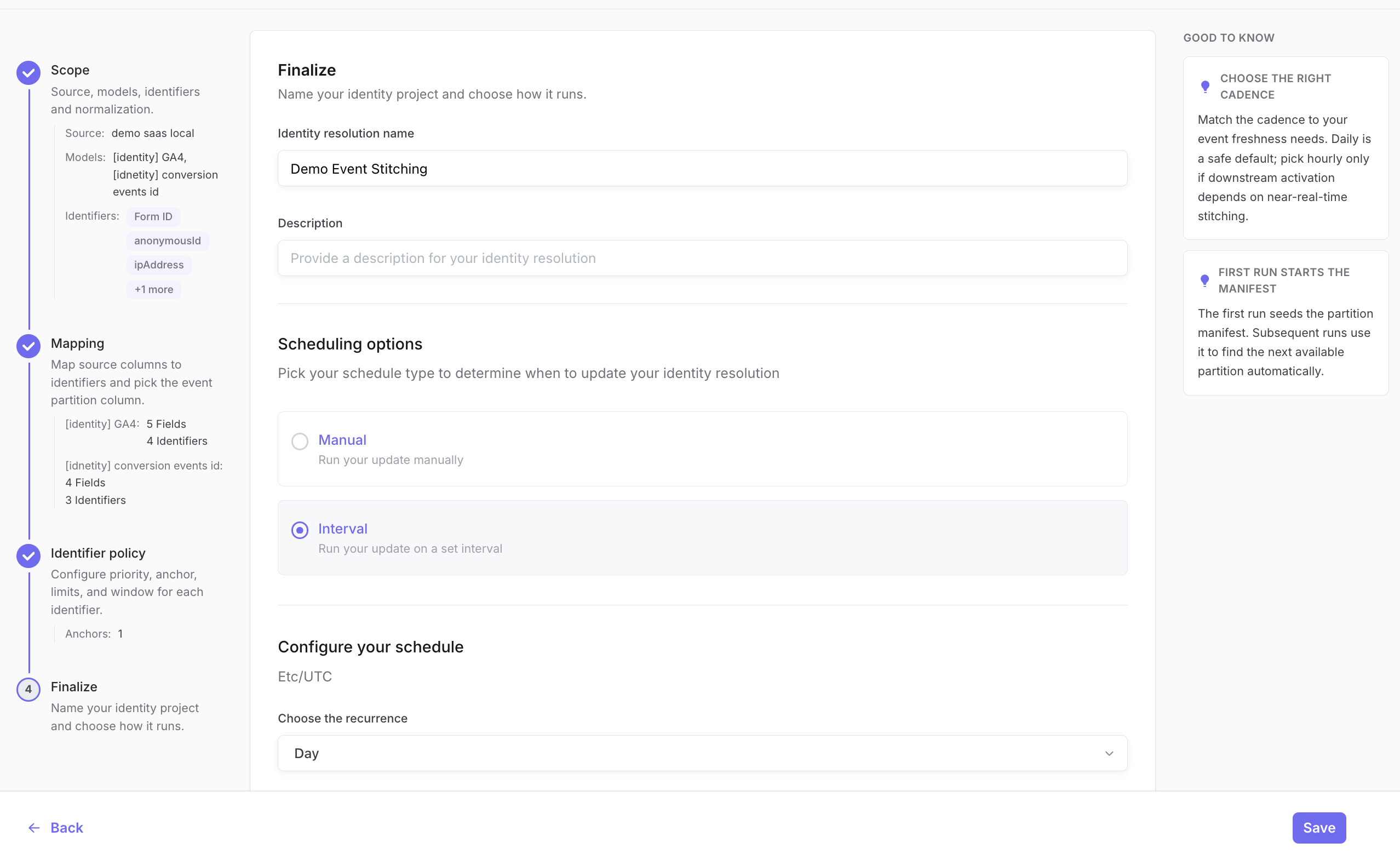
Finalize the project by setting the name, description, and schedule.

Event Stitching Finalize step
Name the project and choose whether runs are manual or scheduled.

Daily is a safe default for most projects. Use a more frequent cadence only when downstream activation depends on fresher stitched events.

The first successful run seeds the partition manifest. Later runs use the manifest to find the next available partition automatically.

Outputs

The main outputs are:

Output
Use it for

identity_event_profile_attribution

Join processed events to dinmo_stitched_profile_id.

identity_event_profiles

Inspect current and merged event profiles.

identity_event_profile_identifier_values

Understand which identifiers explain a profile.

identity_event_profile_run_metrics

Monitor run quality without scanning event history.

See Event Stitching output tables for the full reference.

After the first run

After the first run, open the project detail page.

Use the tabs this way:

Tab
Use it for

Overview

Review processed events, stitch rate, profile counts, trends, model breakdown, and identifier breakdown.

Runs

Inspect run status, run type, processed events, stitched events, stitch rate, and excluded events.

Policy

Review or edit identifier priority, anchors, limits, stitching lifetime, and blocked values.

Setup

Review selected source, models, and field mappings.

Quality

Investigate health checks, identifier quality, exclusion reasons, and audit entries.

Use Review and monitor Event Stitching before relying on stitched events downstream.

Last updated