Create your first Profile Resolution project
Use this guide to create your first Profile Resolution project.
Profile Resolution builds the canonical profile spine: one resolved profile per dinmo_id, exposed through the golden record table and reused by Customer Hub, Segments, Activations, analytics, and downstream models.

Prerequisites
Before starting, make sure you have:
access to a DinMo workspace with Identity Resolution enabled
at least one connected data source
profile-like source models with stable primary keys
useful identifiers such as email, phone, user ID, customer ID, anonymous ID, or device ID
an order field on each source model, such as an update timestamp
Implementation overview
1. Define the scope
Select the source, identity models, and identifiers.
2. Configure models
Map model fields to the identifiers defined in Step 1.
3. Define matching rules
Create the identifier combinations that allow records to merge.
4. Configure golden fields
Select the identifiers and fields exposed in the golden record.
5. Finalize
Review metadata and choose when the identity graph should run.
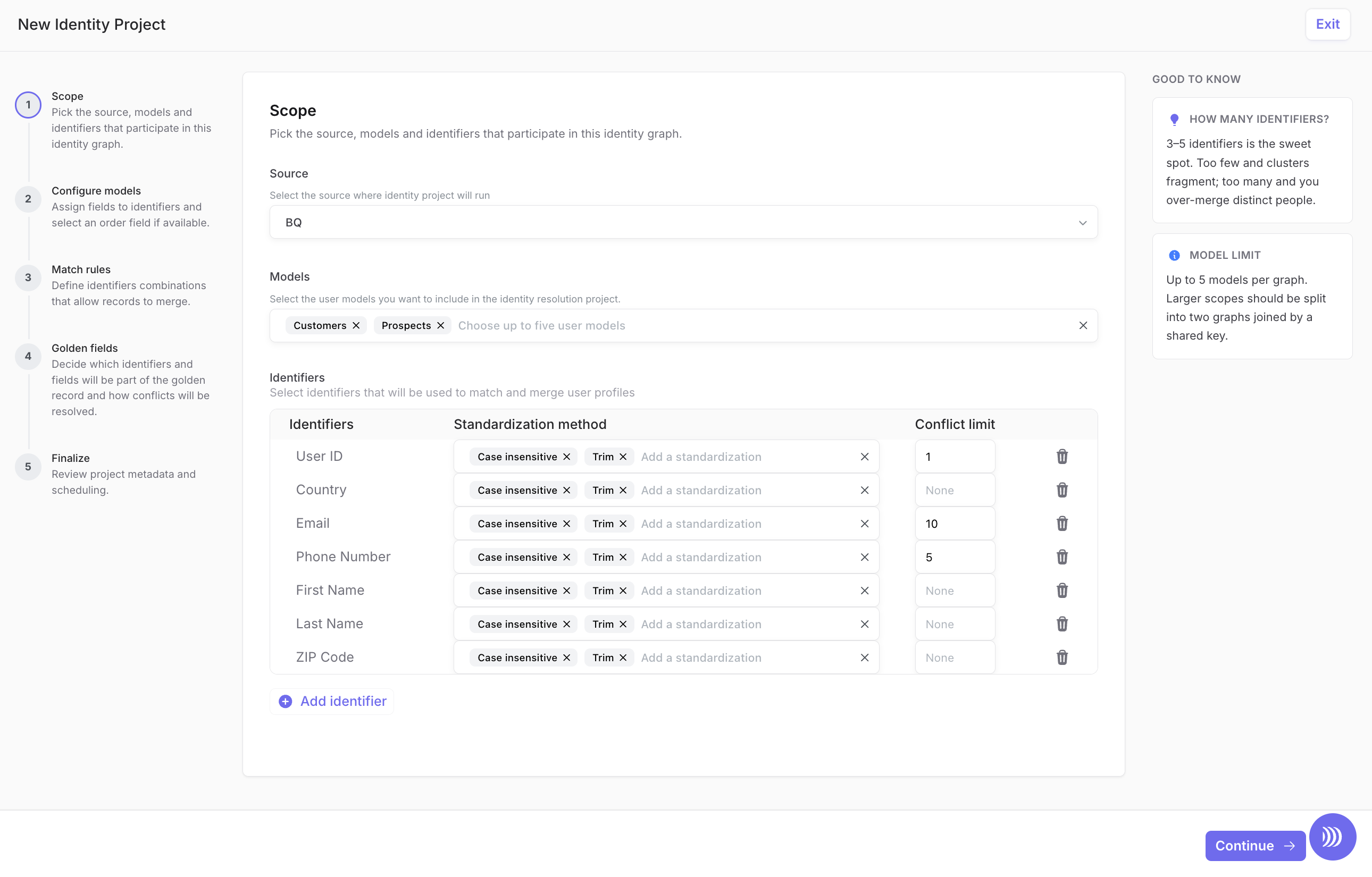
Step 1: Define the scope of your identity project

A. Select the source
Choose the source that holds the models linked to the tables you want to use for your identity resolution project.
Identity projects can be linked to only one source.
Identity Resolution is executed in the cloud data warehouse connected to your source data. All generated outputs are written to a dedicated schema named dinmo_identity.
Before launching your first project, create this schema and grant DinMo ownership on it.
B. Select identity models
Choose models that represent people, customers, users, subscribers, accounts, or contacts.
Good profile inputs include:
CRM contacts
ecommerce customers
app users
subscribers
support contacts
Avoid using high-volume event tables directly as profile inputs. Events should usually be modeled through Event Stitching.
C. Define identifiers to be used for matching
Select the identifiers that DinMo can use to match and merge records across the identity models selected in the previous step.
At this stage, you are defining the logical identifiers available in the identity graph. You will map these identifiers to actual model fields in the next step.
Identifiers can represent stable customer keys, contact details, or secondary profile attributes, such as:
user ID
customer ID
email
phone number
first name
last name
country
ZIP code
For each identifier, configure:
Identifier
The logical identifier DinMo will use in matching rules. You can select a standard identifier or add a custom one.
Standardization method
The normalization applied before matching, such as case insensitive comparison, trimming spaces, or keeping only numeric characters.
Conflict limit
An optional guardrail that defines how many distinct values of this identifier can exist inside one resolved profile.
Conflict limits help prevent unsafe merges. For example, you may allow only one user_id per resolved profile, while allowing several emails or phone numbers depending on your data model. See Matching rules for more details.
Choose identifiers that are meaningful across your selected models. Start with stable and high-confidence identifiers, then add secondary identifiers only when they help support stricter matching rules.
Step 2: Configure models
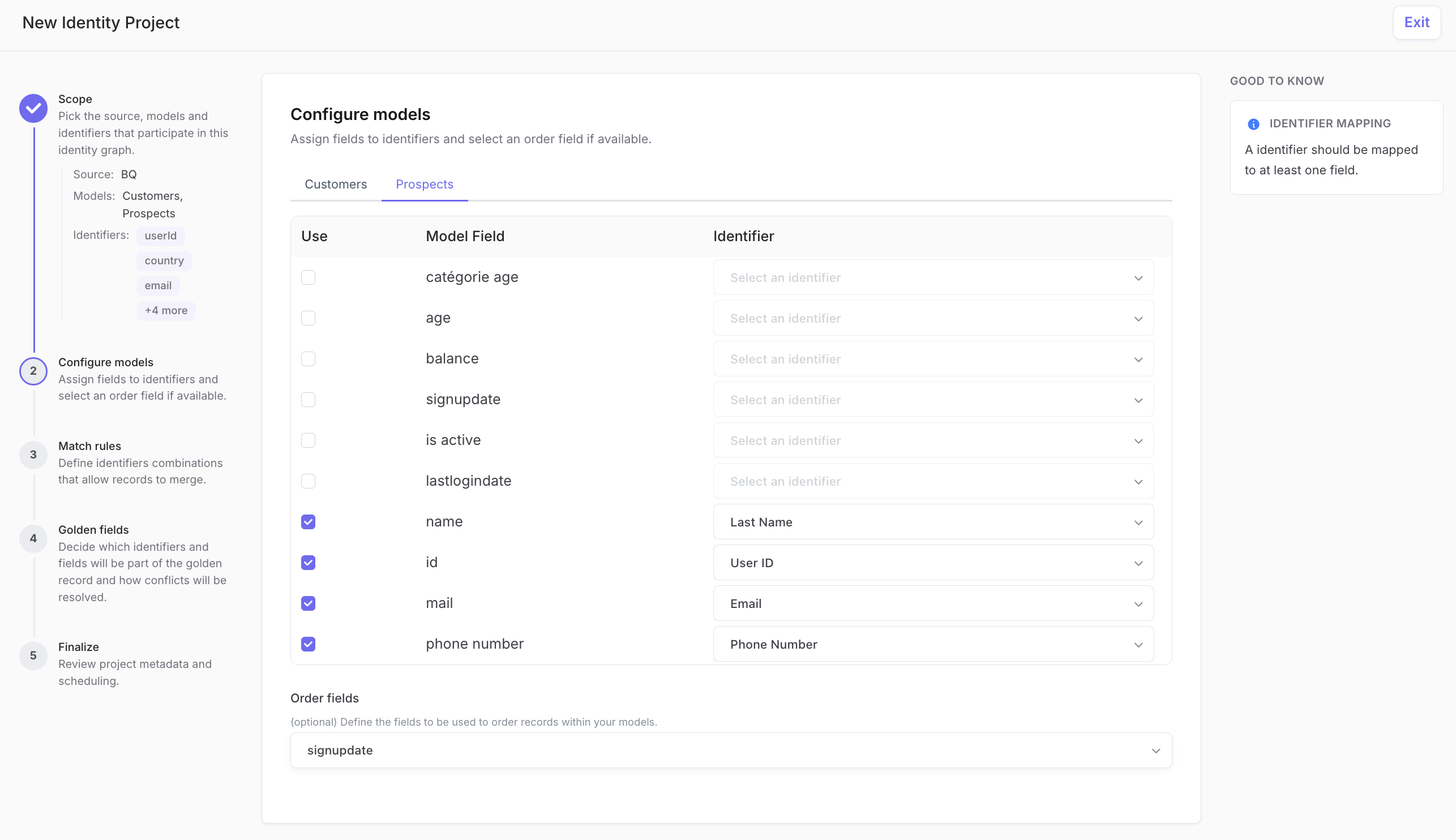
In this step, map the identifiers defined in the previous step to the actual fields available in each identity model.

A. Map model fields to identifiers
For each selected model, review the list of available fields and choose which fields should participate in the identity graph.
Use the Use checkbox to select a field, then assign it to one of the identifiers defined in Step 1.
For example:
mailcan be mapped toEmailphone numbercan be mapped toPhone Numberidcan be mapped toUser ID
The identifier is the logical concept used by DinMo. The model field is the physical column in your source model.
B. Repeat the mapping for each model
Each model can use different field names for the same identifier.
For example, email, mail, and customer_email can all be mapped to the same Email identifier across different models.
An identifier does not need to exist in every model, but each identifier used in the identity graph should be mapped to at least one field.
C. Select an order field
If available, select an order field for each model.
The order field is usually a timestamp such as updated_at, created_at, signup_date, or last_login_date. It helps DinMo order records within a model when evaluating the most recent available information.
The order field is optional, but recommended when your models contain timestamps that reflect record freshness.
Step 3: Define matching rules
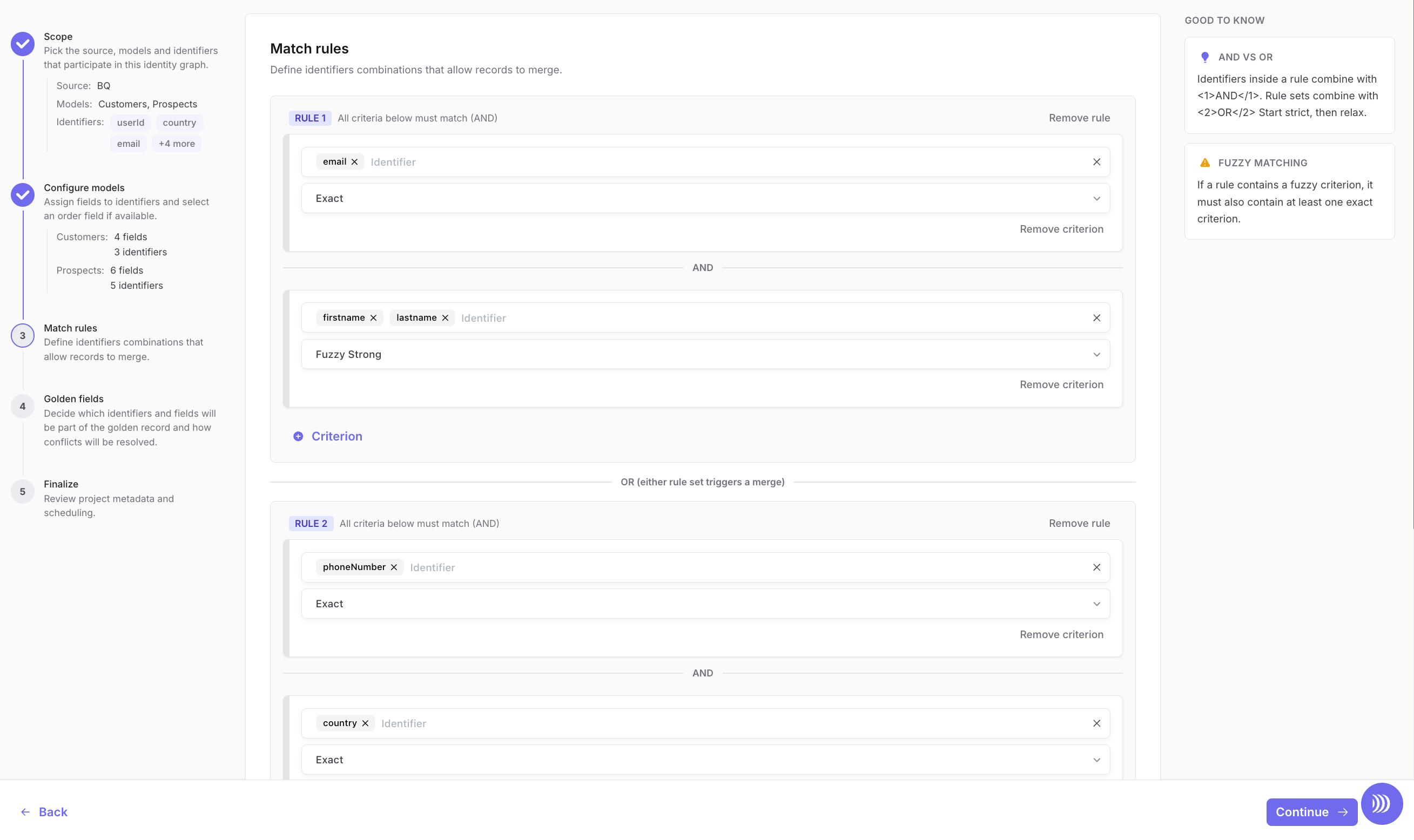
Define the identifier combinations that allow records to merge into the same resolved profile.

Start with conservative rules that are easy to explain and validate:
exact user ID
exact customer ID or CRM ID
exact email
exact normalized phone number
exact strong identifier + fuzzy secondary attribute
Criteria inside the same rule use AND logic. Multiple rules act as OR alternatives. If you use fuzzy matching, anchor it with at least one exact criterion.
See Matching rules for the detailed AND/OR model, match types, criteria, and guardrails.
Step 4: Configure golden fields
Decide which identifiers and fields should appear in the golden record, and how DinMo should choose the winning value when several source records provide different values.
DinMo automatically includes dinmo_id and last_updated_at.
A. Select the fields to include
Add only the identifiers and model fields that should be available downstream.
Identifier: one of the identifiers defined in Step 1, such as
email,phoneNumber,userId, orcountryModel Field: a specific field from one of the selected identity models, such as
Prospects.lastlogindate
B. Choose a survivorship strategy
For each golden field, choose how DinMo should select the value when multiple records are merged into the same dinmo_id:
Last non null
Keeps the most recent non-empty value available for the field.
Most frequent
Keeps the value that appears most often across the merged records.
Model Priority Order
Keeps the value from the most trusted model according to the configured model priority.
See Survivorship rules for strategy details and recommended use cases.
Keep the first golden record focused. Start with high-impact fields such as email, phone number, user ID, customer ID, country, consent status, and key lifecycle dates.
Step 5: Finalize
Review the project details and choose when the identity graph should run.
A. Add project details
Enter a name and optional description.
B. Select a schedule
Choose Manual, Interval, or Custom Recurrence. Use Manual while validating the setup.
C. Save
Save to create or update the identity graph.
Next steps
After the first run:
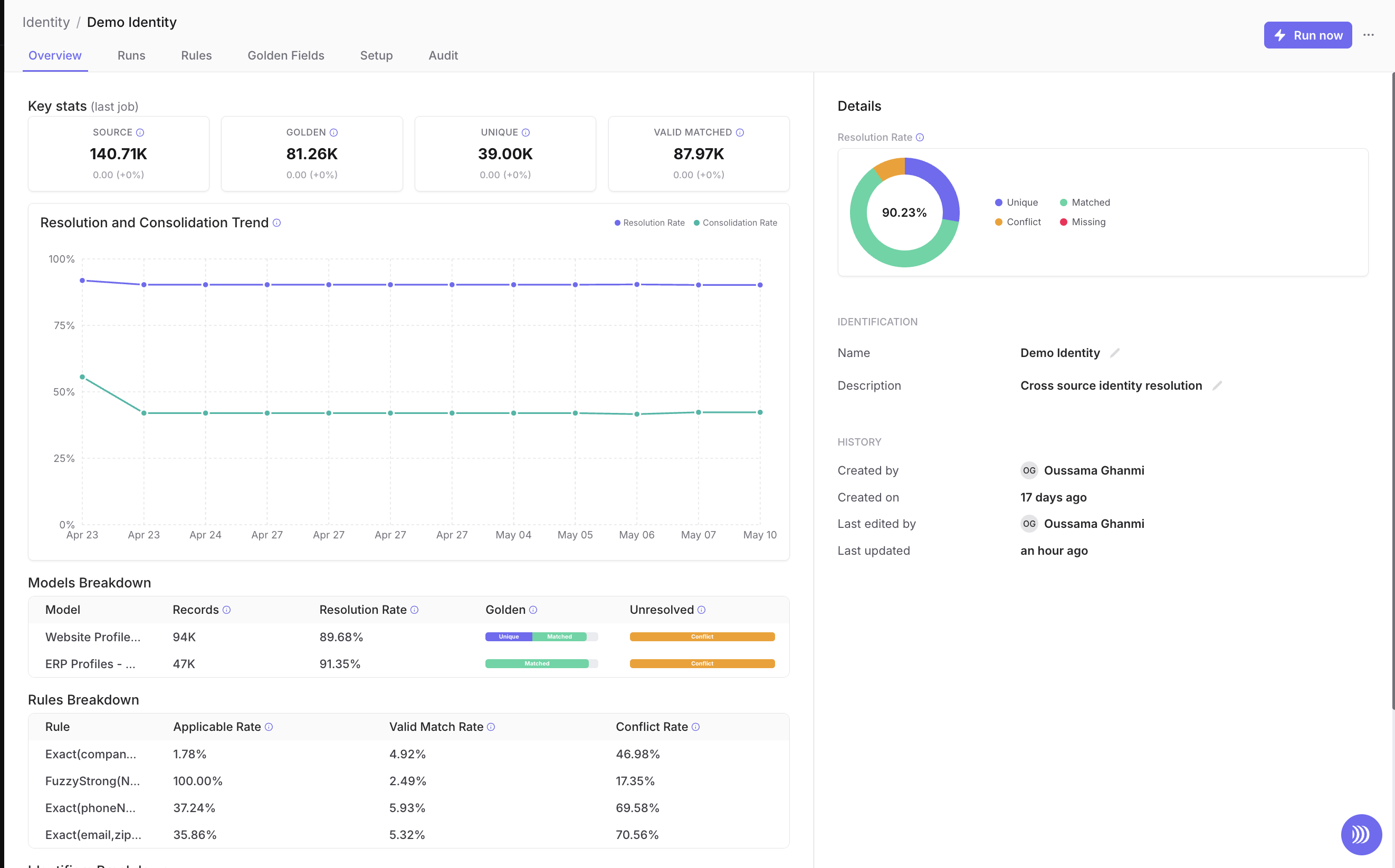
validate the first run in Review and monitor
query the generated warehouse tables in Output tables
configure Event Stitching when event behavior needs a dedicated graph
Last updated