> For the complete documentation index, see [llms.txt](https://docs.dinmo.io/llms.txt). Markdown versions of documentation pages are available by appending `.md` to page URLs; this page is available as [Markdown](https://docs.dinmo.io/integrations/data-sources/aws-redshift/aws-redshift-private-link.md).
# Connect through AWS PrivateLink
Connect private Redshift to DinMo using a Redshift-managed endpoint or your own AWS PrivateLink endpoint service.
AWS PrivateLink lets DinMo reach a private Amazon Redshift deployment without a public Redshift endpoint, SSH bastion, or SSM-managed instance.
## Choose your PrivateLink mode
Both modes use **AWS PrivateLink** in DinMo. Do not select **Direct connection** or replace the standard Redshift host with a private endpoint address.
| Mode in DinMo | Your AWS team operates | Authorization | Procedure |
| ----------------------------- | --------------------------------------------------------------- | ---------------------------------------------------------------------------------- | ------------------------------------------------------------------------------------------------------------------------ |
| **Redshift-managed endpoint** | The private cluster or Serverless workgroup | Grant the exact DinMo account and VPC access to Redshift | Follow the steps on this page |
| **Your endpoint service** | An endpoint service, internal NLB, and private path to Redshift | Allow the DinMo principal on the service, then accept the exact interface endpoint | Follow [Connect through your endpoint service](/integrations/data-sources/aws-redshift/aws-redshift-endpoint-service.md) |
The endpoint-service option is an assisted configuration. Contact your DinMo team before preparing it. It does not create a Redshift-managed VPC endpoint or require a Redshift **Granted accounts** entry.
**The rest of this page describes the Redshift-managed endpoint mode.** Your AWS team authorizes one exact DinMo account and VPC; DinMo creates, validates, and operates the private connection.
Start the request in DinMo. We first review it and provide the account and VPC to authorize. Your team then grants access in AWS and confirms the action in DinMo. The product shows who needs to act at each step; you can leave a submitted request and resume later.
## Data path and ownership
```
DinMo managed service
│ AWS PrivateLink
▼
Your private Redshift cluster or Serverless workgroup
```
The Redshift-managed endpoint lives in DinMo's AWS account and VPC. It does not make your warehouse public and does not require inbound access from the internet.
| Component or action | Owner |
| ----------------------------------------------------------------- | ----------------------- |
| Redshift cluster or Serverless workgroup | Your AWS team |
| Scoped cross-account authorization | Your AWS team |
| DinMo-managed AWS PrivateLink endpoint and service infrastructure | DinMo |
| Database user and SQL grants | Your Redshift team |
| Endpoint DNS name and port registration | DinMo, server-side only |
{% hint style="info" %}
PrivateLink and SSM are alternatives. Selecting PrivateLink does not require your team to operate an EC2 or SSM tunnel host, or to provide AWS credentials to DinMo at runtime.
{% endhint %}
## Supported Redshift deployments
DinMo supports both Redshift-managed endpoint models:
* Provisioned Amazon Redshift clusters.
* Amazon Redshift Serverless workgroups.
The Redshift resource and DinMo endpoint must be in the same AWS region. The guided setup confirms region availability before asking your team to authorize access.
## Prerequisites
### Required for every setup
Have the following ready before starting in DinMo:
* Standard Redshift host, without a protocol or port.
* Customer AWS account ID for a provisioned cluster. For Serverless, DinMo reads it from the standard host.
* An AWS operator who can apply the scoped authorization.
* A Redshift administrator who can prepare the DinMo database identity, schemas, and grants.
DinMo detects the deployment type, AWS region, and cluster or workgroup from the standard host. PrivateLink currently supports Redshift port `5439`. The app records the setup directly in the current workspace; do not send these values or database credentials by email.
### Provisioned cluster
The cluster must:
* Use an RA3 or another node type currently supported by Redshift-managed VPC endpoints.
* Have cluster relocation or Multi-AZ enabled.
* Be available in the recorded AWS region.
* Allow your AWS operator to call `redshift:AuthorizeEndpointAccess`.
Review the current AWS requirements in [Redshift-managed VPC endpoints](https://docs.aws.amazon.com/redshift/latest/mgmt/managing-cluster-cross-vpc.html).
### Redshift Serverless
The workgroup must:
* Be in the `AVAILABLE` state.
* Belong to the recorded customer AWS account and region.
* Allow your AWS operator to manage **Granted accounts** for the workgroup.
Review the current AWS cross-account flow in [Connecting to Amazon Redshift Serverless](https://docs.aws.amazon.com/redshift/latest/mgmt/serverless-connecting.html#serverless-connecting-cross-account).
## Guided setup statuses
The PrivateLink step in DinMo is the source of truth for progress.
| Status | Meaning | Action owner | Can continue? |
| -------------------------- | ----------------------------------------------------------------------------------------- | ---------------------------------------- | ------------- |
| Request received | The non-secret Redshift details are saved and DinMo is preparing the authorization scope. | DinMo | No |
| Customer action required | DinMo recorded the setup and is waiting for the AWS authorization. | Your AWS team | No |
| DinMo verification pending | Your team confirmed the AWS action; DinMo still verifies the effective grant. | DinMo | No |
| DinMo is provisioning | DinMo verified the authorization and is creating and validating the endpoint. | DinMo | No |
| Private network ready | The endpoint is available, validated, and registered server-side. | You: continue to database authentication | Yes |
| Revoked | The authorization or endpoint is no longer approved for use. | DinMo and your AWS team | No |
The page refreshes automatically while work is in progress. You can close it at any time. The pending setup remains visible under **Sources**, where **Continue setup** returns to the current step.
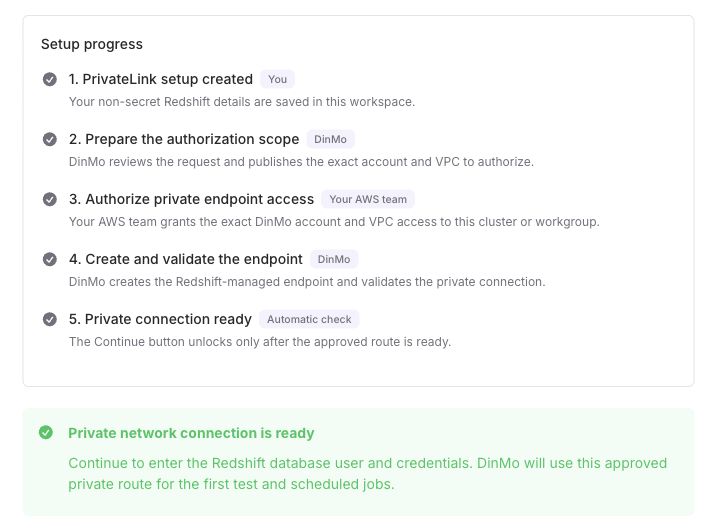
The progress panel identifies the owner of each action. This example shows the completed network setup.
## Step 1: Create the setup request in DinMo
1. Add an **Amazon Redshift** source.
2. Select **AWS PrivateLink** as the connection method.
3. Select **Redshift-managed endpoint**.
4. Enter a source name used inside DinMo. It does not need to match the AWS resource name.
5. Paste the standard Redshift host. DinMo displays the deployment type, region, and cluster or workgroup it detects. For a provisioned cluster, also enter the AWS account ID.
6. Check the detected values, then click **Start PrivateLink setup**.
DinMo receives the request in the app. The source appears immediately under **Sources** with its current status, even if you leave the setup page. You can choose **Return to Sources** or **Exit** without losing the request, then select **Continue setup** later. No database name, username, password, or PrivateLink endpoint is requested at this stage.
## Step 2: Review the authorization scope
DinMo reviews the request and publishes the exact DinMo AWS account and VPC to authorize. When the status changes to **Customer action required**, open the pending source and confirm the cluster or workgroup, customer account, region, DinMo account, and DinMo VPC displayed in the app.
Stop and contact DinMo if any value is unexpected. Do not authorize a broader account, VPC, region, or Redshift resource.
## Step 3: Authorize the exact DinMo account and VPC
DinMo displays the exact action and scope for the deployment type. Use the values shown in the app for your setup.
### Provisioned cluster authorization
Run the following shape of command in the Redshift owner account:
```bash
aws redshift authorize-endpoint-access \
--cluster-identifier "$CLUSTER_IDENTIFIER" \
--account "$DINMO_AWS_ACCOUNT_ID" \
--vpc-ids "$DINMO_VPC_ID" \
--region "$AWS_REGION"
```
The command grants access only to the named cluster, DinMo account, DinMo VPC, and region. Do not omit `--vpc-ids` or replace it with an all-VPC grant.
AWS documents the parameters in [AuthorizeEndpointAccess](https://docs.aws.amazon.com/redshift/latest/APIReference/API_AuthorizeEndpointAccess.html).
### Serverless workgroup authorization
Use the Redshift Serverless console so the workgroup's other permissions remain unchanged:
1. In the Redshift owner account, open **Amazon Redshift Serverless** in the AWS region shown by DinMo.
2. Select the exact workgroup shown by DinMo.
3. Open **Data access**. Under **Granted accounts**, choose **Grant access**.
4. Enter the exact DinMo AWS account ID shown in the app.
5. Choose **Specific VPCs** and add the exact DinMo VPC ID shown in the app. Do not grant access to all VPCs.
6. Review the account and VPC, then save the grant.
If your AWS access is managed as code, merge the DinMo grant into the workgroup's existing resource policy and retain every existing statement. Do not submit a replacement policy containing only the DinMo statement: an AWS `put-resource-policy` update replaces the complete policy document.
AWS documents the same console flow in [Granting access to a VPC](https://docs.aws.amazon.com/redshift/latest/mgmt/managing-cluster-cross-vpc-console-grantor.html).
Return to the PrivateLink step in DinMo and click **I authorized access in AWS**. This records your confirmation in the setup; it does not mark the connection as approved or ready. DinMo separately verifies the effective AWS grant.
## Step 4: Wait for DinMo validation
After your AWS team applies the authorization:
1. DinMo verifies the account, VPC, region, and Redshift resource.
2. DinMo creates the Redshift-managed endpoint in its AWS VPC.
3. DinMo validates the endpoint state, DNS resolution, and private connectivity.
4. DinMo securely registers the connection for your workspace.
5. The app changes the setup status to **Private network ready**.
No customer action is required while the status is **DinMo is provisioning**.
The managed endpoint hostname and port never appear in the browser or source payload. Only DinMo's server-side services can resolve the workspace-scoped setup to the endpoint.
## Step 5: Configure Redshift credentials and permissions
When the status is **Private network ready**, click **Continue**.
Enter the database and authentication details. For IAM, prepare the generated AWS role first, then apply the SQL grants to the correct identity. DinMo restores the standard Redshift host recorded in step 1. Follow [Enter the Redshift details](/integrations/data-sources/aws-redshift.md#step-4-enter-the-redshift-details) and [Prepare the database identity and DinMo schemas](/integrations/data-sources/aws-redshift.md#step-5-prepare-the-database-identity-and-dinmo-schemas).
For provisioned IAM, DinMo requests the dedicated database username and generates a policy for `redshift:GetClusterCredentials`. For Serverless IAM, DinMo generates a policy for `redshift-serverless:GetCredentials` on the exact workgroup and maps the AWS role to the `IAMR:` Redshift identity; no separate username is requested.
If the workgroup consumes a datashare, use its local writable database for the DinMo connection and expose the shared schemas there. See [Use a datashare through a Serverless consumer](/integrations/data-sources/aws-redshift.md#use-a-datashare-through-a-serverless-consumer).
Do not enter the PrivateLink endpoint hostname. DinMo attaches the approved private route automatically.
## Step 6: Save and test
Once authentication and SQL grants are configured, click **Save & test**. With Serverless IAM, the first successful IAM connection creates the `IAMR:` database identity; apply its grants and retry if the test reports missing permissions. See [Save and test](/integrations/data-sources/aws-redshift.md#step-6-save-and-test).
The connection test validates:
* The same private connection used by scheduled jobs.
* TLS to the expected Redshift-managed endpoint.
* Database authentication.
* Read access to selected source schemas.
* Full access to the DinMo technical schemas.
**Private network ready** confirms the network setup, not a fully configured source. The source is ready only when the connection test succeeds. Then validate a model and a test activation before enabling regular syncs.
## Security properties
* Redshift does not need a public IP address.
* The customer authorization is scoped to one DinMo AWS account and VPC.
* The setup record is workspace-scoped and contains no database credentials.
* Endpoint hostname and port remain server-side.
* The browser receives status and customer-safe setup values only.
* DinMo controls the service-side connection and enforces the approved destination.
* PrivateLink cannot be combined accidentally with SSH or SSM settings for the same source.
## Rotation and offboarding
Contact DinMo before changing the Redshift resource, region, customer AWS account, or authorized DinMo VPC. Those values define the connection's ownership boundary and require a reviewed replacement setup.
For endpoint rotation, DinMo validates and registers the replacement before retiring the old endpoint.
For offboarding:
1. Pause jobs that use the source.
2. DinMo revokes the setup record and removes the registered endpoint.
3. Your AWS team revokes the endpoint authorization or removes only the DinMo entry from the Serverless **Granted accounts** list.
4. DinMo deletes the endpoint after confirming that no jobs use it.
## Troubleshooting by status
| Status or symptom | Recommended action |
| ----------------------------------------------------------------- | -------------------------------------------------------------------------------------------------------------------------------------------------------------------------------- |
| Pending setup is not visible | Confirm that you are in the workspace where the request was created, then reopen **Workspace Settings > Sources**. |
| Request received for an extended period | Check that the AWS account, region, resource name, and standard host are correct, then contact DinMo. |
| Customer action required | Apply the exact action shown in DinMo, then click **I authorized access in AWS**. |
| DinMo verification pending or provisioning for an extended period | Do not broaden the grant. Contact DinMo with the source name and current status. |
| Revoked | Stop using the setup and contact DinMo for review or replacement. |
| Private network ready, but Save & test fails | Check Redshift credentials or IAM role, database name, effective database identity, grants, and technical schema permissions. Run grants in the same database selected in DinMo. |
| Region or VPC mismatch | Stop the setup. DinMo must issue or review a connection record with the correct ownership values. |
## Support
Share the workspace, source name, and current status with your DinMo account team or [support@dinmo.io](mailto:support@dinmo.io?subject=AWS%20PrivateLink%20for%20Redshift). Never send database passwords or private endpoint details by email.
---
# Agent Instructions
This documentation is published with GitBook. GitBook is the documentation platform designed so that both humans and AI agents can read, navigate, and reason over technical content effectively. Learn more at gitbook.com.
## Querying This Documentation
If you need additional information that is not directly available in this page, you can query the documentation by asking a question.
Perform an HTTP GET request on the following URL with the `ask` and `goal` query parameters:
```
GET https://docs.dinmo.io/integrations/data-sources/aws-redshift/aws-redshift-private-link.md?ask=&goal=
```
`ask` is the immediate question: it should be specific, self-contained, and written in natural language.
`goal` is what the user is ultimately trying to achieve, the reason they need the answer. Sharing it helps GitBook give you a better, more relevant answer. A goal is most helpful when it describes the outcome the user wants rather than restating the question. For example, with `ask=how do I create an API token`, a goal like `automate deployments from our CI pipeline` lets GitBook tailor the answer to that use case.
The response will contain a direct answer to the question and relevant excerpts and sources from the documentation.
Use this mechanism when the answer is not explicitly present in the current page, you need clarification or additional context, or you want to retrieve related documentation sections.