> For the complete documentation index, see [llms.txt](https://docs.dinmo.io/llms.txt). Markdown versions of documentation pages are available by appending `.md` to page URLs; this page is available as [Markdown](https://docs.dinmo.io/integrations/destination-platforms/voyado-engage.md).
# Voyado Engage
Deliver personalised experiences at scale leveraging Voyado Multichannel Engagement Platform and DinMo Unified Data Foundations
The Voyado integration allows you to sync customer data and audiences from your Data Warehouse to Voyado, and to send event-based data for activation and personalization use cases.
* [**Synchronize user segments**](/integrations/destination-platforms/voyado-engage/sync-audiences-as-labels.md): Sync Segment membership to Voyado profiles as labels.
* [**Synchronize users attributes**](/integrations/destination-platforms/voyado-engage/synchronize-users-attributes.md): Enrich Voyado member profiles with core and custom attributes.
* [**Fire custom triggers**](/integrations/destination-platforms/voyado-engage/fire-custom-triggers-coming-soon.md)**:** Trigger Voyado custom triggers for existing contacts, with contextual payload data built in DinMo. Use this service when DinMo is responsible for deciding **when an action should happen**, such as triggering a transactional or operational communication.
* [**Send interactions**](/integrations/destination-platforms/voyado-engage/send-interactions-coming-soon.md)**:** Send custom interaction events to Voyado and attach them to existing contacts. Use this service when DinMo is responsible for sending **event data**, while Voyado remains responsible for deciding whether and how this data should be used in automations, personalization, or segmentation.
Please refer to the dedicated documentation page for more information.
## Authentication to Voyado
DinMo can push your segments and data models directly into Voyado via its REST API (v3). This guide shows you how to create the necessary API key in Voyado and configure the connection in DinMo.
**1. Prerequisites**
* DinMo access with permission to create Destinations.
* Voyado admin account (to access API settings).
* Voyado Tenant URL: This is the URL you use to log in to Voyado (e.g., `https://mybrand.voyado.com`).
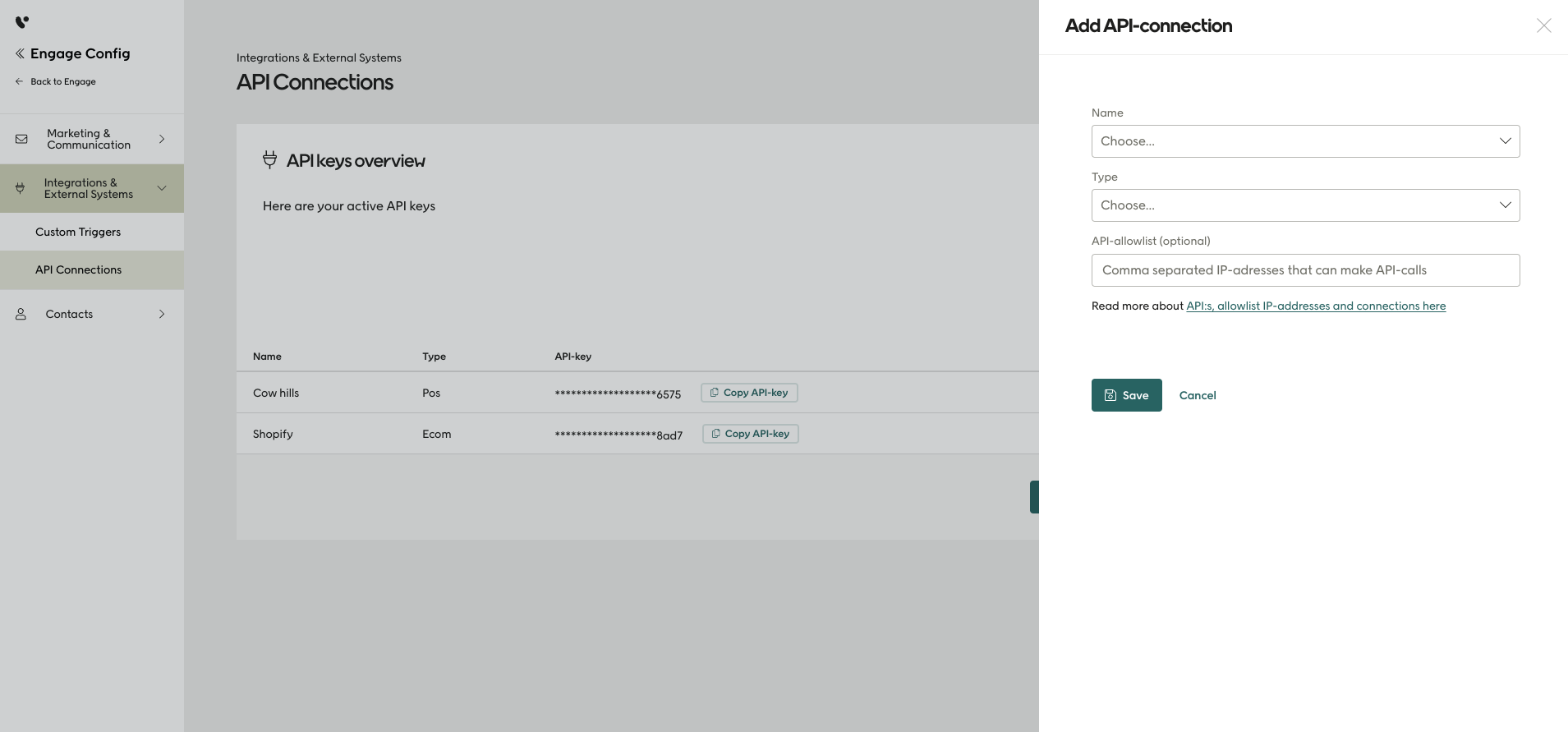
**2. Create an API Key in Voyado**
Refer to this [documentation](https://help.engage.voyado.com/hc/en-gb/articles/23405185859228-API-connections) for more inforamtion
1. Log into your Voyado Config Hub Section.
2. Navigate to Integrations & External Systems→ API Connections.
3. Click **Add Connection**.
4. Fill in the different options
5. Click Save, then Copy the generated API Key.
* *Note: You will not be able to see this key again.*
**3. Configure the Voyado Destination in DinMo**
1. In DinMo, go to Destinations in the side nav.
2. Click Add a new destination → Connect a new platform → Voyado Engage.
3. Fill out the form:
* Platform Name: e.g. `Voyado – Production`
* Tenant URL: Your instance’s base URL (e.g. `https://mybrand.voyado.com`). *Do not include `/api/v3` at the end.*
* API Key: Paste the key you copied from Voyado.
4. Click Connect to validate your credentials.
4\. Verify & Test After saving, DinMo will perform a test call (e.g. `GET /api/v3/contacts`) to ensure your key and endpoint work. On failure, double-check:
* Tenant URL format (ensure no trailing slashes or API paths).
* API Key permissions (must have Write access).
---
# Agent Instructions
This documentation is published with GitBook. GitBook is the documentation platform designed so that both humans and AI agents can read, navigate, and reason over technical content effectively. Learn more at gitbook.com.
## Querying This Documentation
If you need additional information that is not directly available in this page, you can query the documentation by asking a question.
Perform an HTTP GET request on the following URL with the `ask` and `goal` query parameters:
```
GET https://docs.dinmo.io/integrations/destination-platforms/voyado-engage.md?ask=&goal=
```
`ask` is the immediate question: it should be specific, self-contained, and written in natural language.
`goal` is what the user is ultimately trying to achieve, the reason they need the answer. Sharing it helps GitBook give you a better, more relevant answer. A goal is most helpful when it describes the outcome the user wants rather than restating the question. For example, with `ask=how do I create an API token`, a goal like `automate deployments from our CI pipeline` lets GitBook tailor the answer to that use case.
The response will contain a direct answer to the question and relevant excerpts and sources from the documentation.
Use this mechanism when the answer is not explicitly present in the current page, you need clarification or additional context, or you want to retrieve related documentation sections.