> For the complete documentation index, see [llms.txt](https://docs.dinmo.io/llms.txt). Markdown versions of documentation pages are available by appending `.md` to page URLs; this page is available as [Markdown](https://docs.dinmo.io/journeys/journey.md).
# Journeys overview
Journeys let you orchestrate multi-step customer experiences from the DinMo Customer Hub.
A Journey enrolls profiles, moves them through a sequence of steps, and sends them to your destinations according to their data, behavior, and position in the flow.
## What is a Journey?
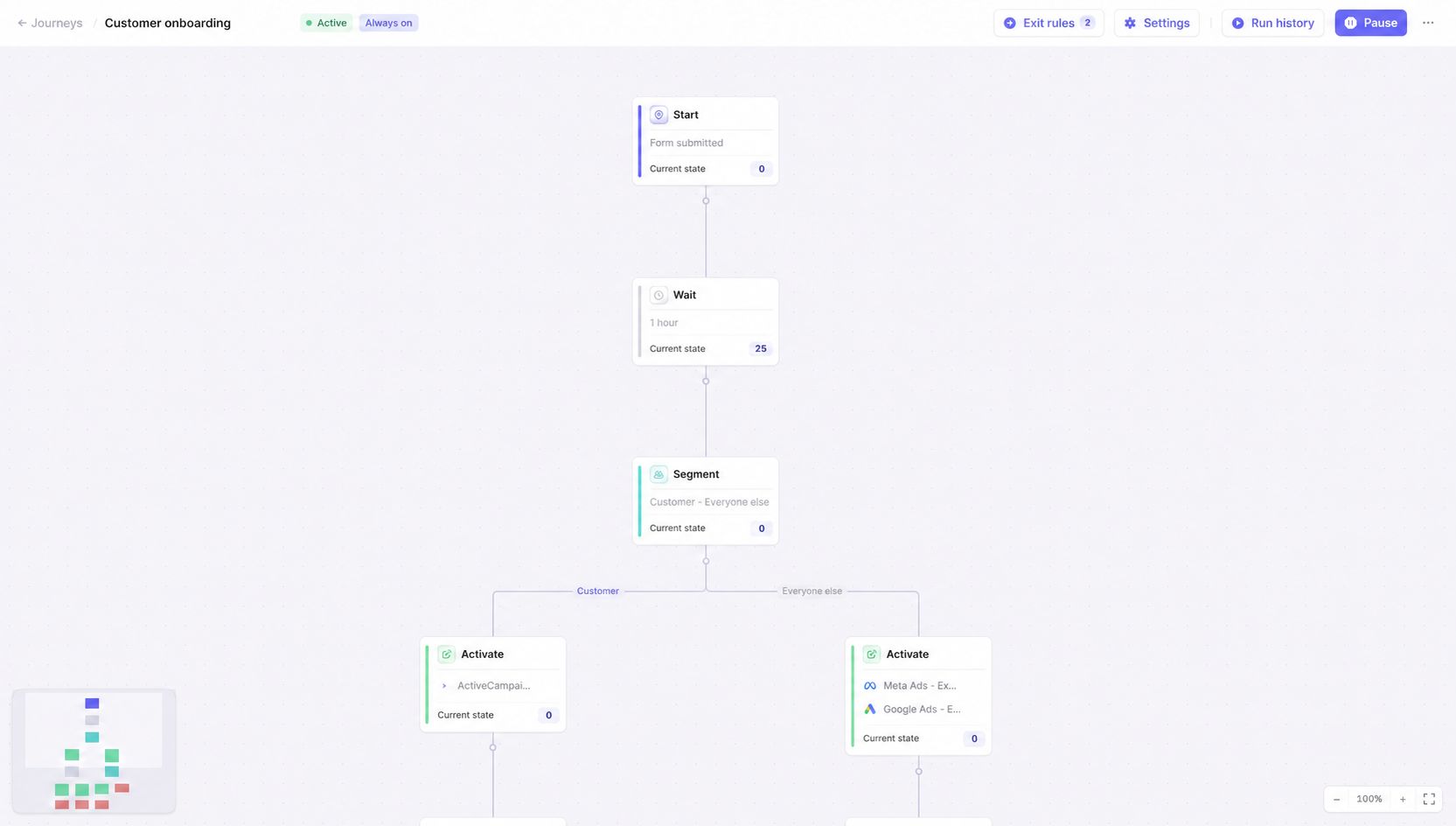
A Journey is a visual workflow designed to coordinate customer actions over time.
You can use a Journey to:
* enroll profiles from an audience or when an event occurs;
* wait before taking the next action;
* branch profiles according to their attributes;
* wait for a profile change or an event;
* send profiles to one or more destinations;
* remove profiles when they meet an exit condition.
A Journey moves profiles through time-based steps, conditions, and destination activations.
Unlike a standalone audience activation, a Journey maintains each profile's position in the workflow between runs.
## How Journeys are evaluated
Journeys run on a schedule or when manually triggered.
During each run, DinMo:
1. evaluates which profiles are eligible to enter;
2. checks whether profiles already in the Journey can move forward;
3. evaluates exit conditions;
4. moves profiles to their next step;
5. sends eligible profiles to the destinations configured in Activate steps;
6. updates the Journey activity and statistics.
Journeys are therefore evaluated at each run. Entry rules, exit rules, and step conditions are not evaluated continuously in real time between runs.
## Enrollment modes
When configuring a Journey, choose how long it should accept new profiles:
| Mode | Behavior |
| -------------- | ----------------------------------------------------------------------------------------------------------------------- |
| **One-time** | Enrollment happens once when the Journey is launched. |
| **Continuous** | Eligible profiles can continue entering during subsequent runs. Enrollment can remain open or stop on a specified date. |
For continuous Journeys, you can also control whether a profile may enter more than once. When re-entry is enabled, you can define a minimum delay between entries and a maximum number of entries per profile.
## Journey steps
Every Journey starts with a Start step and ends each path with a Stop step.
Between them, you can use the following steps:
| Step | Purpose |
| --------------- | -------------------------------------------------------------------------------------------------------------------- |
| **Start** | Defines who can enter and whether profiles may enter again. |
| **Wait** | Keeps profiles at the step for a duration or until a specified weekday and time. |
| **Segment** | Splits profiles into paths according to the value of a profile field. |
| **Pause Until** | Keeps profiles at the step until a profile condition or event is detected, or until the maximum duration is reached. |
| **Activate** | Sends profiles to one or more configured destinations. |
| **Stop** | Ends the Journey for profiles on that path. |
Exit rules apply to the entire Journey and can remove a profile regardless of its current step.
## Journey statuses
| Status | Meaning |
| ---------- | ------------------------------------------------------------------------------------------------------------ |
| **Draft** | The Journey is being configured and does not run. |
| **Active** | The Journey runs according to its schedule and enrollment configuration. |
| **Paused** | Execution is temporarily suspended. Profiles keep their current position until the Journey resumes. |
| **Off** | The Journey is no longer running. This can happen after enrollment has closed and no profiles remain active. |
## Organize and find Journeys
Use tags to organize Journeys by team, campaign, lifecycle stage, or any other workspace convention. Add tags when you create a Journey, or edit and remove them later without unpublishing it. Tags appear in the Journey list.
From the Journey list, search Journey names and filter by status, enrollment mode, or tags. Selecting several tags returns Journeys with any of the selected tags. Select **Untagged** to find Journeys without tags.
## When to use a Journey
Use a Journey when the order or timing of several actions matters.
Typical examples include:
* onboarding new customers over several days;
* following up after a purchase or registration;
* re-engaging inactive customers across several channels;
* sending different communications according to profile attributes;
* waiting for an event before sending the next communication;
* stopping communications as soon as a customer converts or becomes ineligible.
## When to use an audience activation instead
Use a regular audience activation when you only need to synchronize an audience with a destination and no sequencing, waiting, or branching is required.
A Journey is most useful when profiles need to move through several coordinated actions over time.
---
# Agent Instructions
This documentation is published with GitBook. GitBook is the documentation platform designed so that both humans and AI agents can read, navigate, and reason over technical content effectively. Learn more at gitbook.com.
## Querying This Documentation
If you need additional information that is not directly available in this page, you can query the documentation by asking a question.
Perform an HTTP GET request on the following URL with the `ask` and `goal` query parameters:
```
GET https://docs.dinmo.io/journeys/journey.md?ask=&goal=
```
`ask` is the immediate question: it should be specific, self-contained, and written in natural language.
`goal` is what the user is ultimately trying to achieve, the reason they need the answer. Sharing it helps GitBook give you a better, more relevant answer. A goal is most helpful when it describes the outcome the user wants rather than restating the question. For example, with `ask=how do I create an API token`, a goal like `automate deployments from our CI pipeline` lets GitBook tailor the answer to that use case.
The response will contain a direct answer to the question and relevant excerpts and sources from the documentation.
Use this mechanism when the answer is not explicitly present in the current page, you need clarification or additional context, or you want to retrieve related documentation sections.