> For the complete documentation index, see [llms.txt](https://docs.dinmo.io/llms.txt). Markdown versions of documentation pages are available by appending `.md` to page URLs; this page is available as [Markdown](https://docs.dinmo.io/journeys/publish-pause-and-resume-a-journey.md).

# Publish and manage a Journey

Once your Journey is configured, publish it to start processing profiles. You can then pause or resume its execution and follow its lifecycle from the Journey header.

## Before you publish

Before publishing, check three elements:

1. How the Journey accepts new profiles
2. How often it runs
3. Whether the Journey contains errors or warnings

### Choose how profiles enter

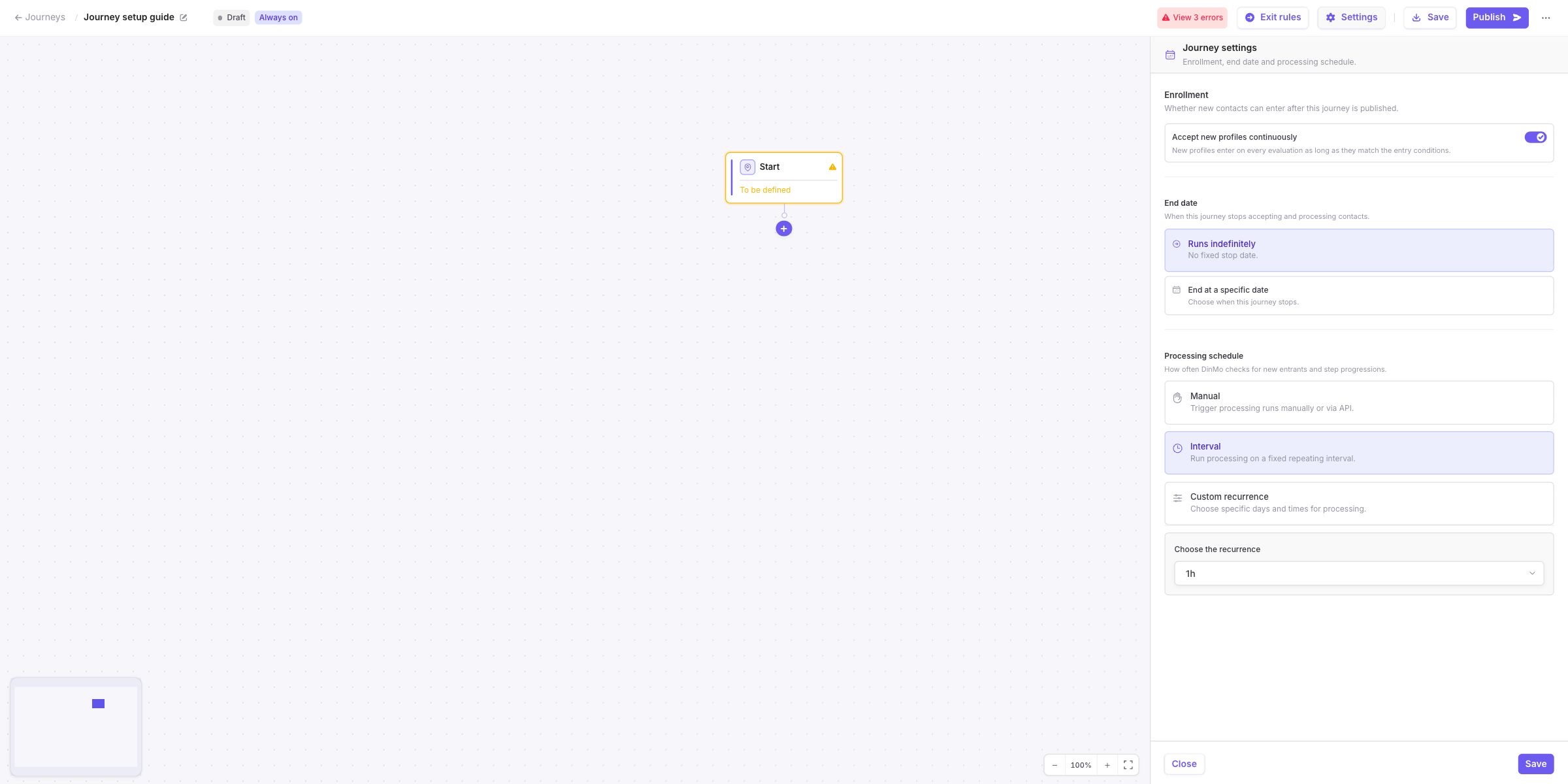
Open **Settings** and configure the **Enrollment** section.

| Enrollment mode   | Behavior                                                                                                                                                                                 |
| ----------------- | ---------------------------------------------------------------------------------------------------------------------------------------------------------------------------------------- |
| **One time only** | DinMo evaluates the entry rules during the first run. Profiles that qualify form the Journey's initial cohort. Later runs continue processing these profiles but do not enroll new ones. |
| **Continuously**  | DinMo evaluates the entry rules during every run and enrolls newly eligible profiles.                                                                                                    |

For continuous enrollment, choose when DinMo should stop accepting new profiles:

* Select **Forever** to keep enrollment open.
* Select an end date to stop enrollment automatically at a specific time.

{% hint style="info" %}
Enrollment and re-entry are different settings. Enrollment determines when the Journey accepts new profiles. Re-entry determines whether a profile that already completed the Journey can enter again.
{% endhint %}

### Configure the processing schedule

The processing schedule determines how often DinMo evaluates and advances the Journey.

It is independent from enrollment. For example, an Always-on Journey can evaluate new profiles every hour or once per day.

Choose a schedule that matches the expected responsiveness of the Journey and the refresh frequency of its source data.

<figure><img src="https://3204318043-files.gitbook.io/~/files/v0/b/gitbook-x-prod.appspot.com/o/spaces%2FxzBTp1t4OfqV67nXkVse%2Fuploads%2Fgit-blob-12e45478e9e4a8e7645a0ff38eb79b0f842a5c11%2Fjourney-publish-settings.jpg?alt=media" alt="Journey settings panel showing continuous enrollment, an indefinite end date, and interval processing"><figcaption><p>Configure enrollment, the end date, and the processing schedule independently.</p></figcaption></figure>

### Resolve errors and review warnings

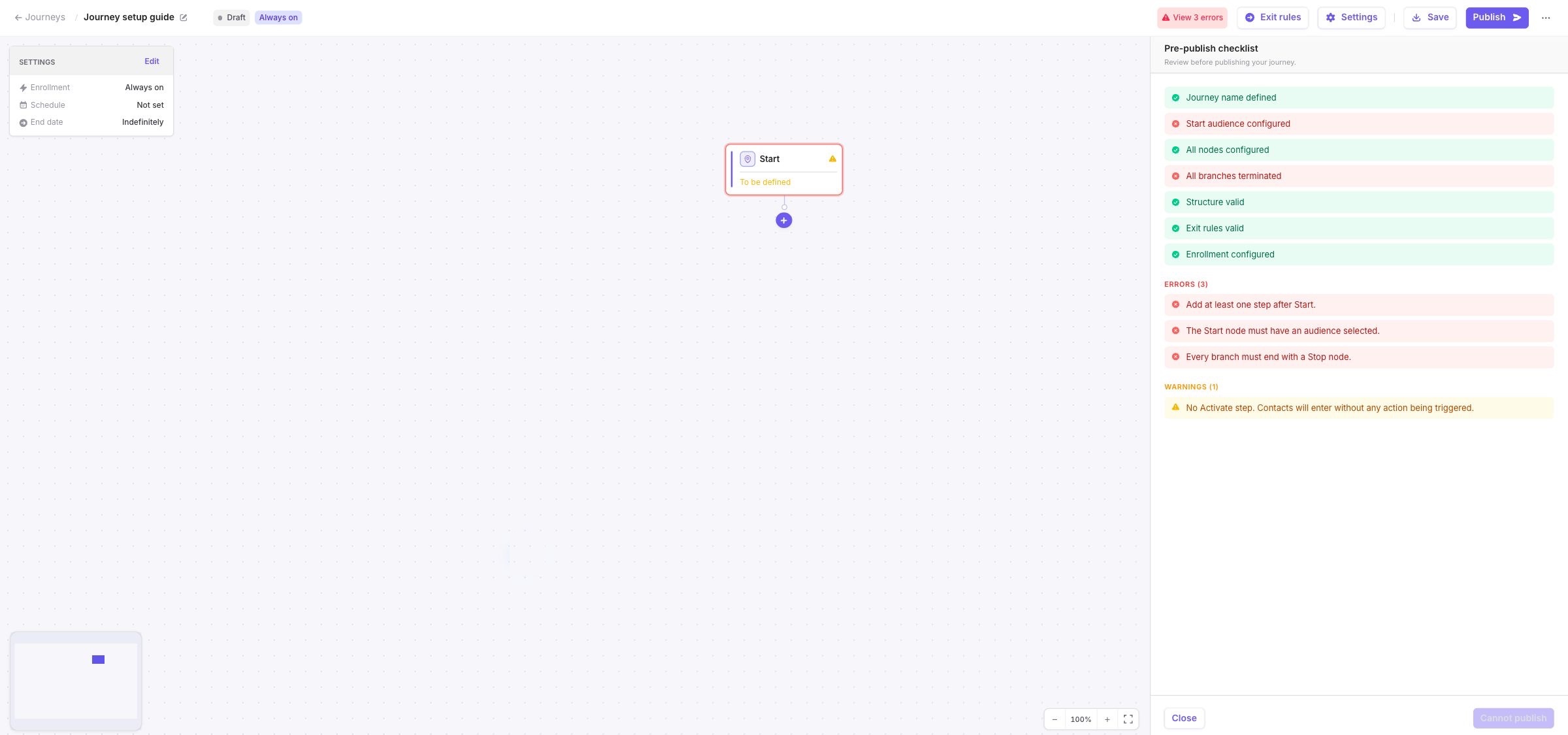
Select **Publish** to open the pre-publish checklist.

The checklist distinguishes between:

| Type        | Effect                                                                             |
| ----------- | ---------------------------------------------------------------------------------- |
| **Error**   | Blocks publication and must be resolved.                                           |
| **Warning** | Does not block publication but highlights a configuration that should be reviewed. |

Select an issue to identify the affected step and update its configuration. You can also use **View errors** from the Journey header to reopen the list of blocking issues.

Warnings should only be accepted when the highlighted behavior is intentional. For example, DinMo may warn you when profiles are activated immediately after entering the Journey.

<figure><img src="https://3204318043-files.gitbook.io/~/files/v0/b/gitbook-x-prod.appspot.com/o/spaces%2FxzBTp1t4OfqV67nXkVse%2Fuploads%2Fgit-blob-dd57ab944dcbde38661accd1953c0519a7c2fa52%2Fjourney-publish-checklist.jpg?alt=media" alt="Pre-publish checklist showing successful checks, blocking errors, and a warning"><figcaption><p>Resolve every error and review each warning before publishing.</p></figcaption></figure>

## Publish the Journey

When the checklist contains no blocking errors, select **Publish**.

Publishing creates a new version of the Journey. This version becomes the configuration used by subsequent runs.

After publication:

* DinMo starts running the Journey according to its schedule.
* Profiles can enter according to the selected enrollment mode.
* Profiles already in the Journey progress when its runs are processed.
* The published version appears in the Journey's run history.

If you later update and republish the Journey, DinMo creates another version. Previous runs remain associated with the version that produced them.

{% hint style="warning" %}
Publishing can affect real profiles and destinations. Review the entry volume, activation steps, delays, branches, and exit rules before confirming.
{% endhint %}

## Understand the Journey lifecycle

Enrollment and lifecycle are shown separately in DinMo.

| Label         | Meaning                                                                                       |
| ------------- | --------------------------------------------------------------------------------------------- |
| **One-time**  | The Journey accepts profiles during its initial enrollment run only.                          |
| **Always on** | The Journey continues accepting newly eligible profiles.                                      |
| **Draining**  | Enrollment is closed, but profiles are still progressing through the Journey.                 |
| **Off**       | Enrollment is closed and no profiles remain active. Scheduled processing stops automatically. |

A Journey enters **Draining** after the enrollment period ends—for example, after the initial enrollment of a One-time Journey or when an Always-on Journey reaches its configured end date.

While draining, no new profiles enter. Profiles already enrolled continue until they leave the Journey. DinMo moves the Journey to **Off** automatically when no active profiles remain.

## Pause and resume execution

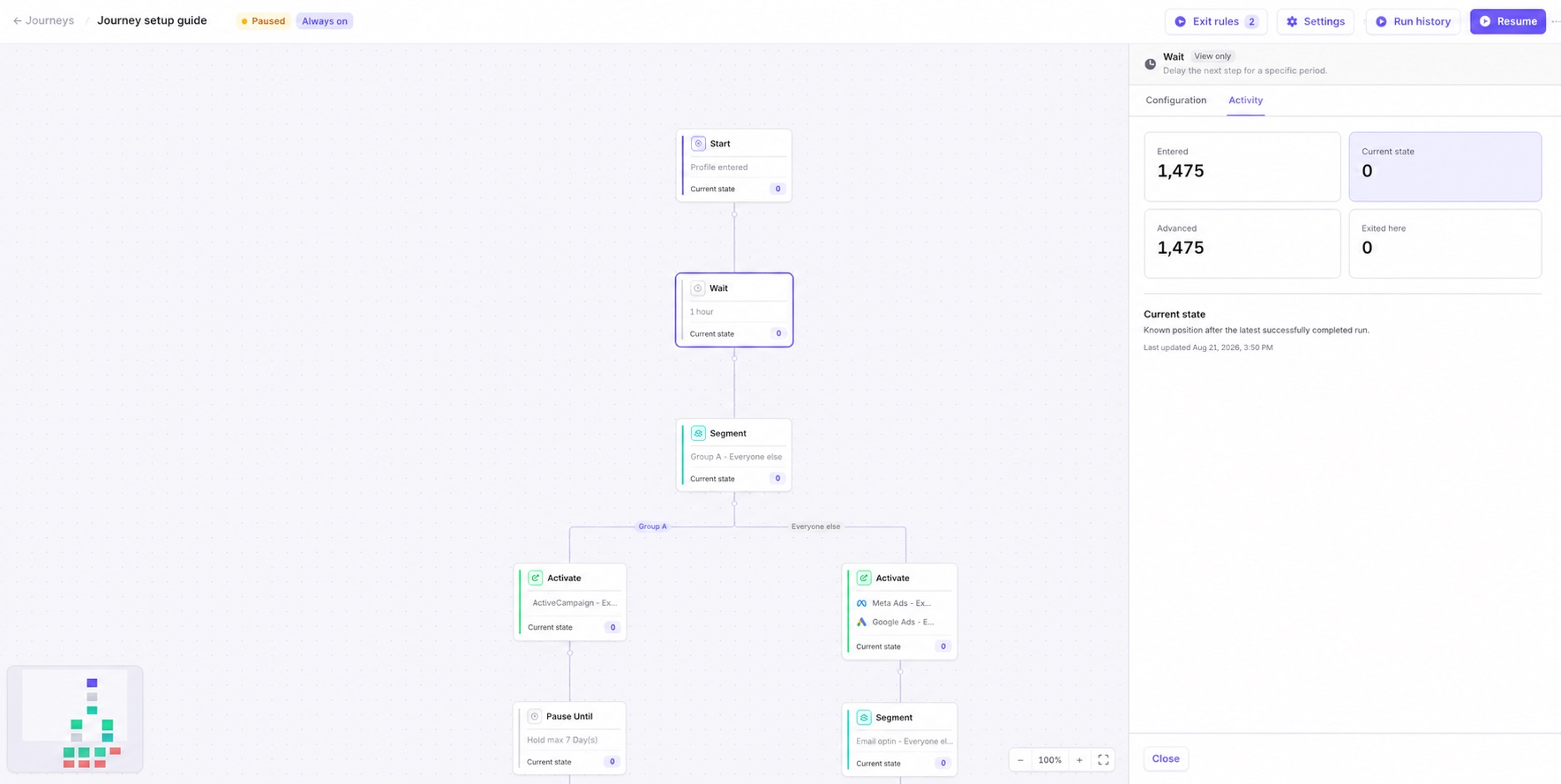
Pause a Journey when you need to temporarily stop its scheduled processing—for example, while investigating unexpected results or preparing a configuration change.

While the Journey is paused:

* No scheduled runs are processed.
* No new profiles enter.
* Profiles already in the Journey do not progress.

Pausing does not reset the Journey or create a new enrollment cohort.

When you are ready to continue, select **Resume**. DinMo restarts processing according to the configured schedule and enrollment settings.

Before resuming, confirm that:

* The reason for the pause has been resolved.
* The Journey configuration is safe to run.
* Profiles that were waiting can still continue with the expected timing.

## Trigger a run manually

When **Run now** is available for your role, you can use it to trigger an execution without waiting for the next scheduled run.

A manual run does not change the Journey's enrollment mode or processing schedule. It follows the same rules as a scheduled run.

Use manual runs carefully: they can enroll, advance, or activate real profiles depending on the Journey configuration.

## After publishing

After the first run:

* Check that the run completed successfully.
* Confirm that the number of enrolled profiles is consistent with your entry rules.
* Review the current profile counts displayed on the Journey steps.
* Verify that profiles reached the expected destinations.
* Investigate errors before triggering another run.

Journey activity reflects the latest successfully completed run. It should not be interpreted as real-time data.

<figure><img src="https://3204318043-files.gitbook.io/~/files/v0/b/gitbook-x-prod.appspot.com/o/spaces%2FxzBTp1t4OfqV67nXkVse%2Fuploads%2Fgit-blob-b3314807a02d332593016cd4b2b61ca58af25822%2Fjourney-publish-activity.jpg?alt=media" alt="Paused Journey with the Activity tab open and profile counts displayed for the selected Wait step"><figcaption><p>Open a step's Activity tab to review profile movements and the current state from the latest successful run.</p></figcaption></figure>

## Related pages

* [Configure entry, re-entry, and exit rules](/journeys/entry-rules.md)
* [Configure Journey steps and branches](/journeys/steps-and-branches.md)
* [Monitor and troubleshoot a Journey](/journeys/monitoring-and-troubleshooting.md)


---

# Agent Instructions
This documentation is published with GitBook. GitBook is the documentation platform designed so that both humans and AI agents can read, navigate, and reason over technical content effectively. Learn more at gitbook.com.

## Querying This Documentation
If you need additional information that is not directly available in this page, you can query the documentation dynamically by asking a question.

Perform an HTTP GET request on the current page URL with the `ask` query parameter, and the optional `goal` query parameter:

```
GET https://docs.dinmo.io/journeys/publish-pause-and-resume-a-journey.md?ask=<question>&goal=<endgoal>
```

`ask` is the immediate question: it should be specific, self-contained, and written in natural language.
`goal` is optional and describes the broader end goal you are ultimately trying to accomplish on behalf of the user. GitBook uses it to tailor the answer towards what is most useful for that goal.

The response will contain a direct answer to the question and relevant excerpts and sources from the documentation.

Use this mechanism when the answer is not explicitly present in the current page, you need clarification or additional context, or you want to retrieve related documentation sections.