> For the complete documentation index, see [llms.txt](https://docs.dinmo.io/llms.txt). Markdown versions of documentation pages are available by appending `.md` to page URLs; this page is available as [Markdown](https://docs.dinmo.io/workspace-management/managing-users-roles-and-permissions.md).
# Managing Users, Roles & Permissions
This guide explains how to manage users, their roles, and the permissions of each role in a DinMo workspace. It covers inviting members, managing roles (and the permissions of each role), and handling pending invitations.
***
Managing access and responsibilities across users is essential for secure and efficient collaboration. DinMo provides flexible **role-based access controls** (RBAC) that allow teams to assign the right level of permissions depending on each user's responsibilities.
With roles, workspace administrators can:
* Control which **modules and features** a user can access.
* Group similar types of users under **consistent permission sets.**
* Create **custom permission profiles** that reflect internal processes and governance rules.
## How roles work
DinMo offers two kinds of roles:
* **Default roles:** Ready-made access levels that make onboarding faster
* **Custom roles**: Specific roles that you can adapt to your teams and governance structure
Every workspace can define **custom roles** to match internal workflows and governance.
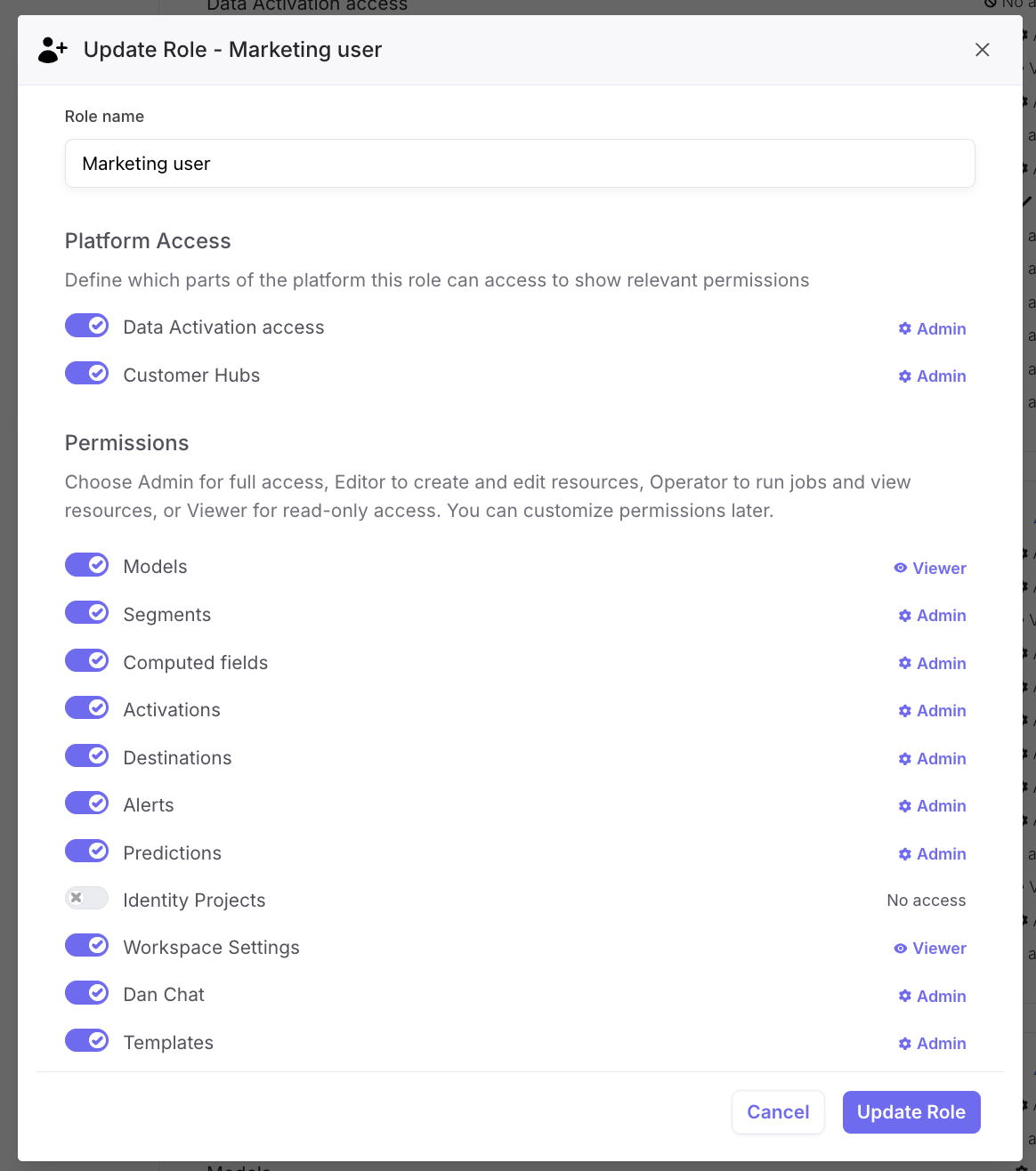
When creating a custom role, you assign a permission level for each high-level feature in DinMo.
***
When creating a role, DinMo allows you to control access at two levels:
1. **Application-level access**
2. **Module-level permission detail**
### 1. Application-Level Access
Some features in DinMo are grouped into higher-level applications:
| Application | What it includes |
| ---------------------------------------------- | ------------------------------------------------------------------ |
| **Data Activation** | Data model, destinations, segments, sync scheduling, monitoring |
| [**Customer Hubs**](/customer-hub/overview.md) | Customer 360 profiles, audience explorations, experiments, metrics |
Enabling access to one of these applications **makes the relevant modules visible** in the UI for users assigned to this role.
> For example, if a role does not have access to Customer Hub, users will not see Models at all — even if they have Editor or Viewer permissions at module-level.
This enables admins to hide entire product areas for certain roles.
### 2. Module-Level Permissions
In addition to the [two default roles](#3-default-roles) (Admin and Power User), DinMo allows you to create custom roles bespoke to you and your business. Roles are managed in the *Roles* tab of the *Settings* page. Here you have the option to 'Create Role'.
When creating a role, you can select the feature to access within the platform via the toggle, and at what level the access is granted via the drop down. We have five levels of access:
* **No access** - feature not visible within the platform
* **Viewer** - read-only access to see the contents of the feature
* **Operator** - ability to launch jobs (re-runs / refreshes etc) for existing resources within the feature
* **Editor** - create new or edit resources within the feature
* **Admin** - create new, edit or delete the resources within a feature
Assign access levels to each feature, including Templates.
Permissions are assigned **per feature category**:
| Feature Category | Description |
| ------------------------ | ----------------------------------------------------------------------------------------------- |
| **Workspace Management** | User and workspace settings, including all data engineering features (sources, ingestion, etc.) |
| **Model** | Data models and schemas. |
| **Computed Field** | Computed attributes. |
| **Segment** | Audience *(Customer Hub)* and segmentation *(Data Activation)* builder. |
| **Activation** | Activation workflows and sync schedules. |
| **Destination** | Sync destinations + platform connections. |
| **Prediction** | Predictive scoring and ML assets. |
| **Identity Resolution** | Entity stitching and identity logic. |
| **Alert** | Monitoring and operational notifications. |
| **Templates** | Reusable templates for creating DinMo objects. |
| **Customer Hub** | Customer profile browsing & enrichment. |
### 3. Default Roles
DinMo provides two standard roles that cover the most common workspace setups.
* **Admins**
Admins have **full and unrestricted access** to all modules, features, entities, and settings within a workspace.
**Typical responsibilities include:**
* Managing workspace configuration.
* Granting, modifying, and removing user access.
* Defining or adjusting custom roles.
* Overseeing security, compliance, and operational setup.
Use this role for workspace owners, lead data engineers, or platform administrators.
***
* **Power Users**
Power Users have access to **all DinMo modules** and can perform most operations within the workspace, but **do not manage workspace-level administration**.
**A Power User can:**
* Create and update models, segments, predictions, destinations, etc.
* Activate audiences and sync data.
* Collaborate across initiatives.
**A Power User cannot:**
* Manage all data engineering features, including source connexions
* Manage workspace membership or permissions.
* Update workspace configuration or governance settings.
Use this role for data analysts, marketing operations specialists, or performance marketers.
## Permission Dependencies
Some features require read access to others in order to function properly. For example:
* Creating a **Computed Field** requires at least **read access** on the underlying Model.
* Creating a **Prediction** requires at least **read access** to Models.
* Creating a **Segment** requires at least **read access** to Models.
DinMo automatically checks and enforces these dependency rules.
## Managing Users
**Viewing** **Users**
* The *Members* tab provides a list of all users in the workspace and their assigned roles.
**Inviting** **New** **Members**
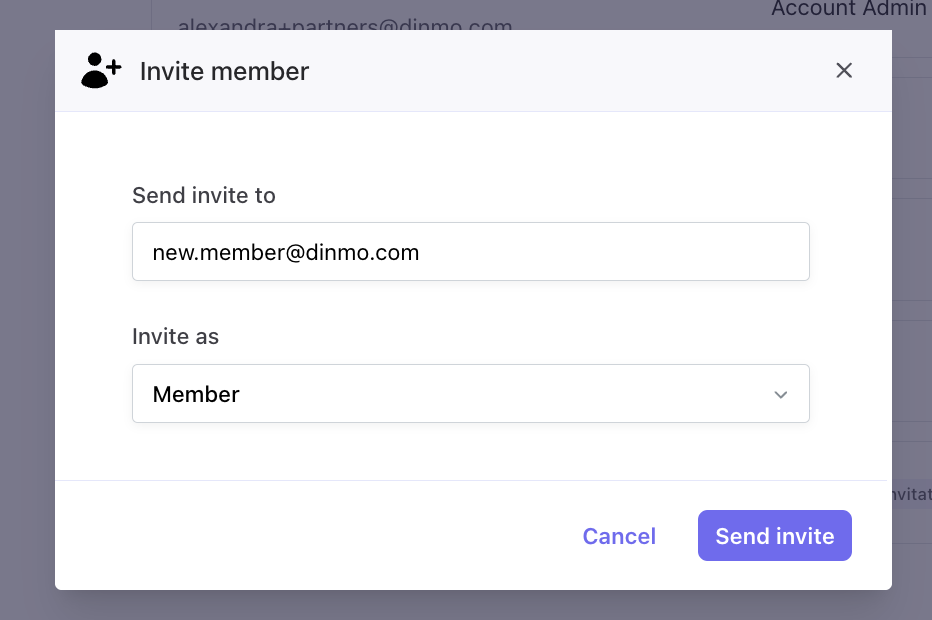
1. Click on the *Invite Member* button.
2. Enter the email address of the person you want to invite.
3. Select the appropriate role for the new member (e.g., Admin, Power User, Custom Role).
4. Send the invitation.
Send invite to a new member
**Handling** **Invitations**
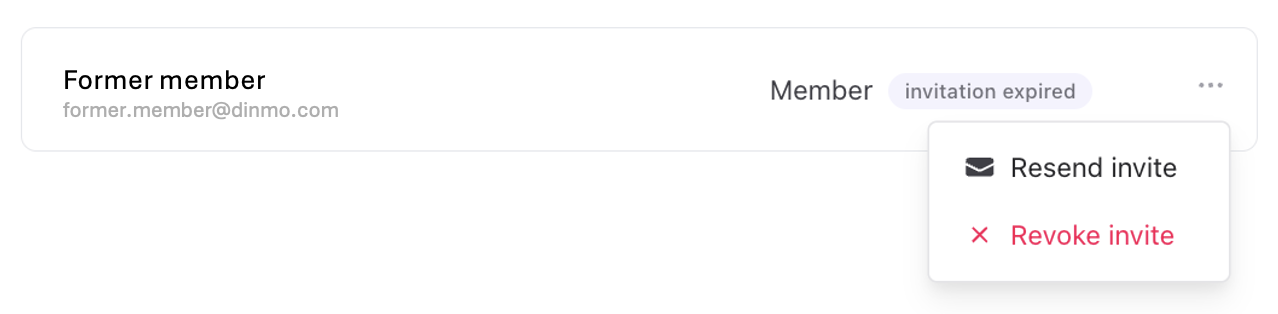
* **Invitation Expiry**: Workspace invitations expire **24 hours** after they are sent.
* **Resending Invitations**: If an invitation expires, click on the three dots next to the pending invite and select Resend Invite.
* **Removing Invitations**: You can also remove a pending invitation by clicking the three dots and selecting Remove Invite.
Resending and revoking existing invites
**Managing existing** **User** **Access**
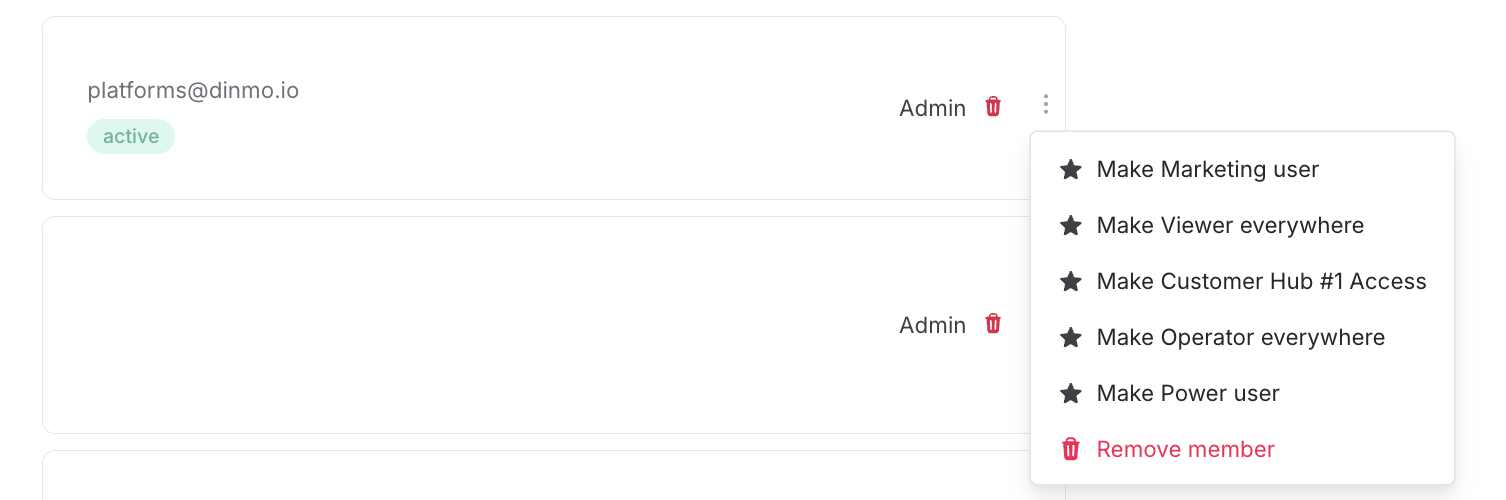
For existing users, you can either delete them or modify their rights (as Admin, Power User, or a Custom Role).
1. Locate the user in the *Members* tab.
2. Click on the three dots next to their name and select:
1. *Revoke Access* if you want to remove this person's access to DinMo
2. *Make \[xxx] i*f you want to promote someone to the role of \[xxx]
{% hint style="info" %}
It is possible to assign multiple roles to the same person.\
In this case, refer to [this section](#permission-resolution) to ensure you understand how rights work.
{% endhint %}
## FAQ - Specific Cases
### Permission Resolution
If a user has multiple roles, DinMo applies **the highest permission level** granted for each feature.
This ensures flexibility when combining profile-based roles (e.g., "Marketing") and responsibility-based roles (e.g., "Brand Team Lead").
Example:
| Role | Segment | Destination |
| ----------------- | ------- | ----------- |
| Marketing Analyst | Viewer | Operator |
| Campaign Manager | Editor | Viewer |
**Effective permissions** = Editor on Segments, Operator on Destinations.
***
### Admin at the Account Level
Account administrators always have **full access to all workspaces** within an account.
They **do not** need workspace-specific role assignments.
***
### Future-Proof Granularity
DinMo is designed to support more granular data governance over time.
This includes **entity-level permissions** (e.g., access only to workspace A and workspace B) — ensuring the system scales with organizational needs and compliance constraints.
---
# Agent Instructions
This documentation is published with GitBook. GitBook is the documentation platform designed so that both humans and AI agents can read, navigate, and reason over technical content effectively. Learn more at gitbook.com.
## Querying This Documentation
If you need additional information that is not directly available in this page, you can query the documentation by asking a question.
Perform an HTTP GET request on the following URL with the `ask` and `goal` query parameters:
```
GET https://docs.dinmo.io/workspace-management/managing-users-roles-and-permissions.md?ask=&goal=
```
`ask` is the immediate question: it should be specific, self-contained, and written in natural language.
`goal` is what the user is ultimately trying to achieve, the reason they need the answer. Sharing it helps GitBook give you a better, more relevant answer. A goal is most helpful when it describes the outcome the user wants rather than restating the question. For example, with `ask=how do I create an API token`, a goal like `automate deployments from our CI pipeline` lets GitBook tailor the answer to that use case.
The response will contain a direct answer to the question and relevant excerpts and sources from the documentation.
Use this mechanism when the answer is not explicitly present in the current page, you need clarification or additional context, or you want to retrieve related documentation sections.