Synchronize custom tables

Overview

In this destination service, DinMo will export and update attributes in the Actito Custom table of your choice and, optionally, insert new profiles.

To achieve this, you will need to follow these three steps:

  1. Creating an Actito destination: Refer to the corresponding section for detailed instructions.

  2. Creating a segment or model: This should include all objects and their attributes that will be updated in Actito.

  3. Activating the model or segment to the Actito destination: This initiates the data synchronization. Refer to the corresponding section for guidance.

Every time an activation runs, DinMo evaluates the latest audience data and syncs the resulting changes to the destination according to the selected sync mode and run type:

  • Insert: Each activation sends only newly detected records to the destination and inserts them without modifying or deleting existing data.

  • Update: Each activation sends only records that have changed and updates existing records in the destination, without inserting new ones or deleting data.

  • Upsert: Each activation sends new and changed records to the destination, inserting missing records and updating existing ones as needed.

  • Mirror: Each activation synchronizes the destination to match the source by inserting new records, updating changed ones, and permanently deleting records that are no longer present in the source.

Destination setup

To start synchronizing your custom objects, you are first required to create a Actito destination with the corresponding destination service.

Learn how to create such a destination in our step-by-step tutorial

Activation configuration

Once the destination has been setup, and your DinMo model created, you can create an activation to start sending data to Actito right away.

Learn how to activate a segment in our step-by-step tutorial

Sync modes

Sync modes determine how data is synchronized between your data source and your Actito application. They control whether to insert new records, update existing ones, or both, and how to handle the synchronization process.

For the Actito destination, here are the available options:

Sync Mode
Description
Use Case
Behavior

INSERT

Processes only new records detected since the last sync and inserts them into the destination. Existing records are never modified or removed.

  • Append-only datasets

  • Event or log ingestion

  • Historical data tracking

  • Detects new records using delta keys

  • Inserts new records only

  • Ignores existing and deleted records

  • Fastest and least intrusive sync mode

UPDATE

Processes only changed records detected since the last sync and updates existing records in the destination. New records are ignored.

  • Enriching or correcting existing datasets

  • Attribute updates without data growth

  • Systems where record creation is handled elsewhere

  • Detects modified records using delta keys

  • Updates existing records only

  • Does not insert or delete records

  • Assumes records already exist in the destination

UPSERT

Processes new and changed records, inserting new records and updating existing ones as needed.

  • Standard synchronization use cases

  • Incremental data refresh

  • Large datasets with moderate change rates

  • Detects new and updated records

  • Inserts missing records

  • Updates existing records

  • Does not delete records

  • Balances data freshness and performance

MIRROR

Keeps the destination fully synchronized with the source by applying inserts, updates, and deletions detected since the last sync.

  • Maintaining an exact replica of the source

  • Operational systems requiring strict consistency

  • Data pipelines with frequent deletes

  • Detects all changes using delta logic

  • Inserts new records

  • Updates changed records

  • Deletes records missing from the source

  • Requires connector support for delete operations

Fields mapping

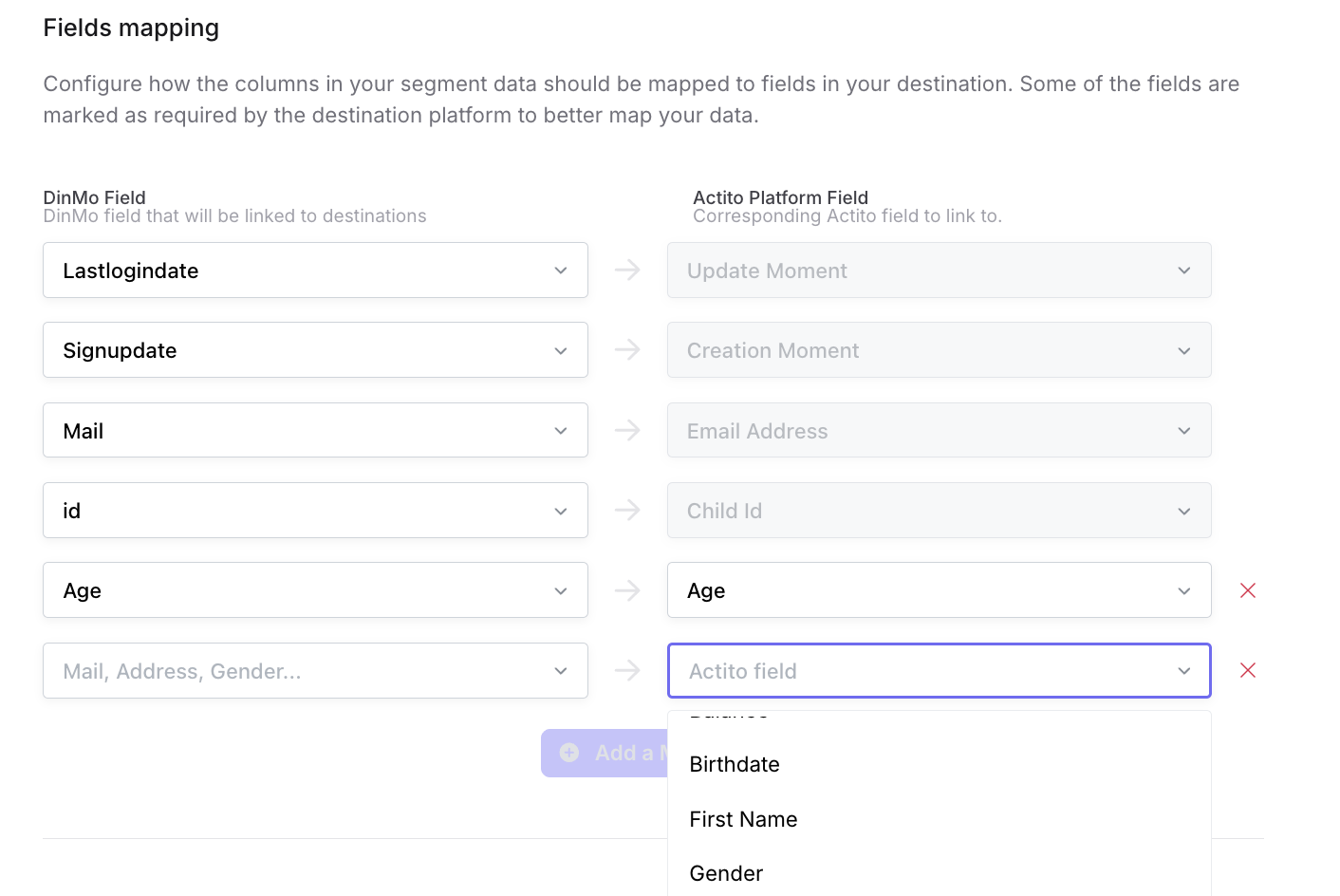
In the fields mapping section, you have to configure how the columns in your segment data should be mapped to fields in your destination.

Some of the fields are marked as required by the destination platform to better map your data.

You can also map all other fields that already exist in your custom table in Actito. The dropdown menu on the right (Actito platform field) lists all possible fields.

Create custom attributes

In this section, you can define the attributes you want to create in Actito and continue synchronize. DinMo ensures the values of the mapped attributes are always up to date in Actito.

To map an attribute:

  • On the left side, select the field in DinMo containing the attribute’s value.

  • On the right side, type the exact name of the attribute as it appears in Actito.

Note: If the attribute you specify does not exist in Actito, DinMo will automatically create it.

Scheduling options

In this section, specify how often the data should be inserted/updated/deleted in Actito.

Warnings

In this section, specify if you want to receive warning for your Actito activation.

Consult this specific documentation to learn more about sync warnings.

Last updated