> For the complete documentation index, see [llms.txt](https://docs.dinmo.io/llms.txt). Markdown versions of documentation pages are available by appending `.md` to page URLs; this page is available as [Markdown](https://docs.dinmo.io/integrations/destination-platforms/microsoft-dynamics-365-1.md).
# Microsoft Dynamics 365
Sync customer profiles and attributes from your data warehouse into Microsoft Dynamics 365 via Dataverse Web API
{% hint style="info" %}
With this integration you can activate segments and models from DinMo and map them to objects within **Microsoft Dynamics 365** via **Dataverse Web API**. This allows your sales and marketing teams to work with always-up-to-date data directly inside Dynamics (Contacts, Accounts, Leads, custom tables, etc.).
{% endhint %}
## Prerequisites
Before creating the destination in DinMo, you need:
* A **Dynamics 365** environment with Dataverse enabled.
* An **Azure Entra ID** (Azure AD) tenant for this environment.
* A **Web API endpoint** for your Dataverse environment, for example:\
`https://org1234567.crm4.dynamics.com/api/data/v9.2/`
* An **App registration** in Entra ID configured for **client credentials**.
* An **Application user** in Dataverse based on this app registration, with a security role that grants access to the tables DinMo will write to.
You will need the following values to configure the destination:
1. **Web API endpoint**
2. **Tenant ID**
3. **Client ID**
4. **Client Secret**
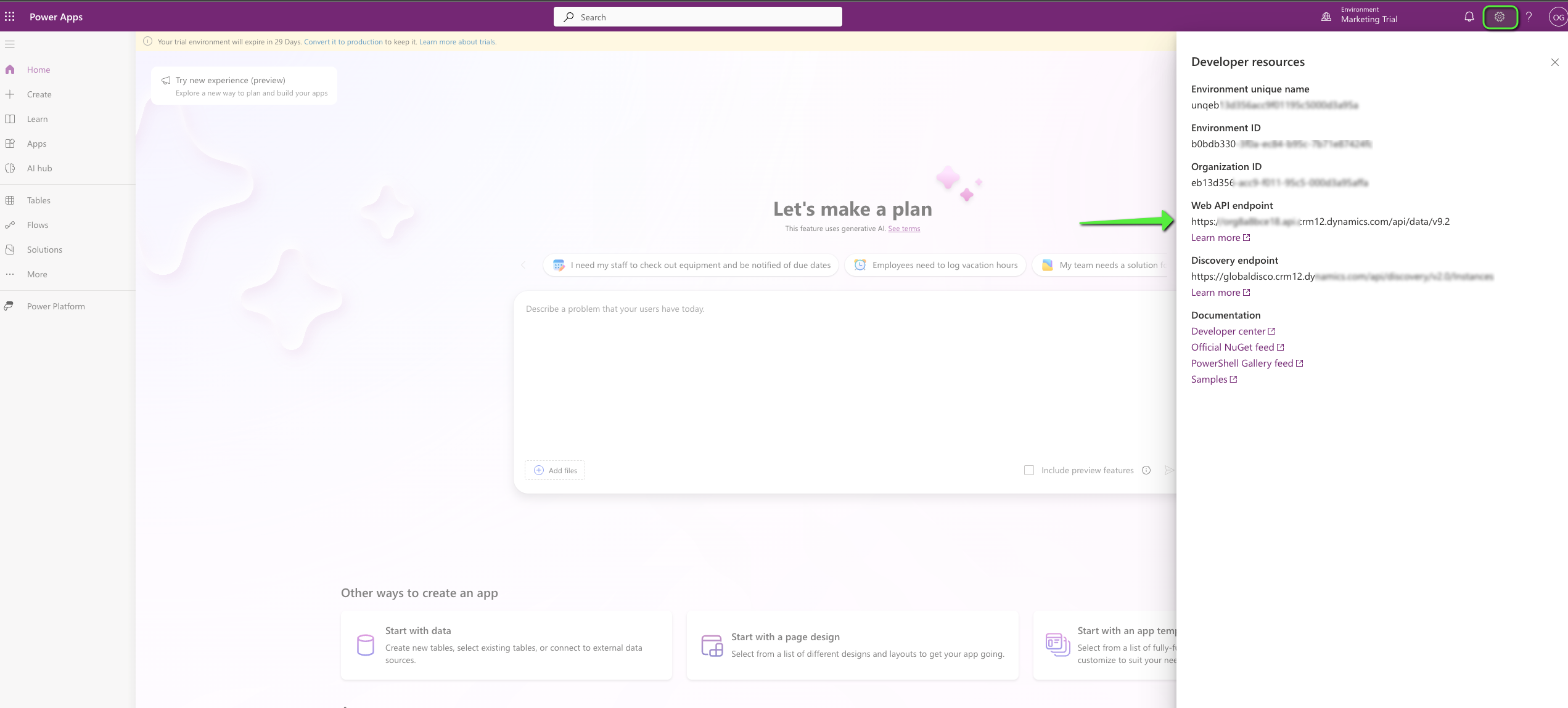
## Step 1 – Find your Web API endpoint
1. Sign in to **Dynamics 365** and open the environment where you want to sync data.
2. Go to **Advanced Settings** → **Settings** → **Customizations** → **Developer Resources**.
3. Copy the **Web API** URL, which looks like:
```
https://org1234567.crm4.dynamics.com/api/data/v9.2/
```
4. This value will be used as the **Web API endpoint** in DinMo.
## Step 2 – Create an App registration (client credentials)
1. Open the **Azure portal** and navigate to **Microsoft Entra ID**.
2. Go to **App registrations** → **New registration**.
3. Set:
* **Name**: e.g. `DinMo – Dynamics 365`
* **Supported account types**: *Accounts in this organizational directory only*
4. After creation, note:
* **Application (client) ID** → will be the **Client ID**
* **Directory (tenant) ID** → will be the **Tenant ID**
5. In **Certificates & secrets**, create a **New client secret**:
* Copy the **secret value** and store it securely. This will be the **Client Secret** used by DinMo.
6. No redirect URI is required for client credentials.
DinMo will use these values to request OAuth2 access tokens via the **client\_credentials** flow.
## Step 3 – Create the Application user in Dataverse
To allow the app to access data in Dataverse:
1. Go to the **Power Platform admin center** and open your Dynamics environment.
2. Under **Settings**, navigate to **Users + permissions** → **Application users**.
3. Click **New app user** (or **+ New**) and:
* Select your environment.
* Choose the **App registration** created in the previous step.
4. Assign an appropriate **Security role**, for example:
* A dedicated role such as `DinMo Integration`, with:
* Read / Write on the relevant tables (e.g. `contacts`, `accounts`, `leads`, custom tables).
* Read on reference / lookup tables as needed.
5. Save the user.
This Application user will appear as the “actor” for all writes performed by DinMo in Dynamics 365.
## Step 4 – Create the Dynamics 365 destination in DinMo
1. In DinMo, go to the **Destinations** section.
2. Click **New destination**.
3. Select **Microsoft Dynamics 365** from the list of destination platforms.
4. In the connection form, fill in the following fields:
### Authentication settings
* **Web API endpoint**\
The full Dataverse Web API URL, for example:\
`https://org1234567.crm4.dynamics.com/api/data/v9.2/`
* **Tenant ID**\
Your **Directory (tenant) ID** from the App registration, for example:\
`3ae5e114-e015-4601-9485-d6f4748c0182`
* **Client ID**\
The **Application (client) ID** of the App registration, for example:\
`c91bf891-e59c-41c0-971e-21fd84d20cc3`
* **Client Secret**\
The client secret value created in **Certificates & secrets**. DinMo will encrypt this value at rest.
5. Click **Test connection** to verify that DinMo can obtain a token and reach the Web API endpoint.
6. Save the destination.
Once the destination is created, it can be reused across multiple activations.
## Supported objects and sync behavior
DinMo connects to **Dataverse** and writes directly into tables used by Dynamics 365 applications.
Typical use cases include:
* **Contacts**
* Sync customer identifiers, personal data, and marketing attributes into the `contacts` table.
* **Accounts**
* Sync company-level information into the `accounts` table and link contacts to accounts.
* **Leads / Opportunities** (optional)
* Enrich or create leads/opportunities based on segments in DinMo.
* **Custom Tables**
* Write to custom Dataverse tables when your Dynamics implementation uses them for advanced processes.
For each activation, you will:
* Choose the **target table** (e.g. `contacts`).
* Define the **primary key strategy** (e.g. Dataverse GUID, alternate keys using external IDs or email).
* Map DinMo fields to Dataverse columns.
* Configure how DinMo handles **create / update** (upsert) and **optional deletions**.
## Best practices
* **Use alternate keys for idempotent syncs**\
Configure alternate keys on fields like external customer ID or email address so DinMo can safely upsert records without relying solely on GUIDs.
* **Limit the security role to what DinMo needs**\
Start with a broad role during setup, then refine it to only the tables and operations required for your use cases.
* **Use a dedicated environment for testing**\
Validate your mappings and sync behaviour in a sandbox environment before enabling syncs against production.
* **Monitor API limits**\
Dynamics and Dataverse enforce API limits and throttling. Prefer incremental syncs and batch sizes aligned with Microsoft recommendations.
## Troubleshooting
* **403 – Forbidden**
* Check that the **Application user** exists in the target environment.
* Verify that the Application user has a **security role** with at least Read/Write on the relevant tables.
* Confirm that the **Web API endpoint** host matches the one used in the OAuth scope (internally used by DinMo).
* **401 – Unauthorized**
* Tenant ID, Client ID, or Client Secret is incorrect or expired.
* The App registration does not allow client credentials, or the secret has been deleted or rotated.
* **Connection test fails**
* Confirm that the Web API endpoint is reachable and points to the correct environment.
* Make sure the Dynamics environment is active and Dataverse is provisioned.
***
If you want, I can now write the **“Activation configuration”** section (field mapping examples for Contacts/Accounts, primary keys, and recommended defaults) in the same style so you can plug it directly into your docs.
---
# Agent Instructions
This documentation is published with GitBook. GitBook is the documentation platform designed so that both humans and AI agents can read, navigate, and reason over technical content effectively. Learn more at gitbook.com.
## Querying This Documentation
If you need additional information that is not directly available in this page, you can query the documentation by asking a question.
Perform an HTTP GET request on the following URL with the `ask` and `goal` query parameters:
```
GET https://docs.dinmo.io/integrations/destination-platforms/microsoft-dynamics-365-1.md?ask=&goal=
```
`ask` is the immediate question: it should be specific, self-contained, and written in natural language.
`goal` is what the user is ultimately trying to achieve, the reason they need the answer. Sharing it helps GitBook give you a better, more relevant answer. A goal is most helpful when it describes the outcome the user wants rather than restating the question. For example, with `ask=how do I create an API token`, a goal like `automate deployments from our CI pipeline` lets GitBook tailor the answer to that use case.
The response will contain a direct answer to the question and relevant excerpts and sources from the documentation.
Use this mechanism when the answer is not explicitly present in the current page, you need clarification or additional context, or you want to retrieve related documentation sections.