> For the complete documentation index, see [llms.txt](https://docs.dinmo.io/llms.txt). Markdown versions of documentation pages are available by appending `.md` to page URLs; this page is available as [Markdown](https://docs.dinmo.io/integrations/destination-platforms/snapchat-ads/send-offline-conversions.md).
# Send Offline Conversions
Learn how to use Offline Conversions Events to Snapchat CAPI
## Overview
With this destination service, DinMo will send offline conversion events to optimize targeting (for instance: clicks, add to carts, purchase, etc.).
To do so, you will need to go through these three steps:
* Creating a Snapchat destination. Refer to the [corresponding section](#destination-setup) for more info.
* Creating an event segment composed of all the events you wish to send to Snapchat.
* Activating the segment to the Snapchat destination to start sending data. Refer to the [corresponding section](#activation-configuration) for more info.
DinMo will be sending all the new conversion events each time the activation is running.
{% hint style="info" %}
Setting up the conversion API requires some technical knowledge. We strongly advise you to look at the [conversion API](https://businesshelp.snapchat.com/s/article/conversions-api?language=en_US) official documentation to know what data you should send to the Snapchat Ads event manager and in which format.
{% endhint %}
## Destination setup
To start sending conversion events, you are first required to create a Snapchat destination with the corresponding destination service.
Refer to [this documentation](/integrations/destination-platforms/snapchat-ads.md) if necessary.
## Activation configuration
Once the destination has been setup, and your DinMo segment containing all your conversion events created, you can create an activation to start sending data to Snapchat right away.
You will need to specify the pixel id to which your events will be sent to.
{% hint style="info" %}
*Note: If the pixel id you seek is not listed, it means that the user who connected DinMo to* Snapchat *does not have the permissions for this account.*
{% endhint %}
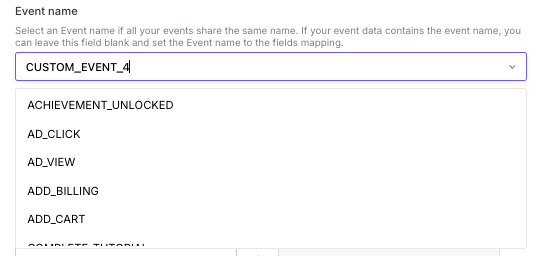
### Event name
When setting up a activation, you need to specify the related event name.
You can select an Event name if all your events share the same name. If your event data contains the event name in a column, you can leave this field blank and set the Event name to the fields mapping.
### Fields mapping
In the Fields mapping section, you are asked to specify the meaning of the fields of your segment that you wish to send to Snapchat. Any non mapped fields in your segment will not be sent to Snapchat.
Snapchat will use the fields you send to identify the conversions and their values, and recognize each user behind the conversions.
You must map the following field:
* **Event time** (Required): The timestamp when the conversion took place
If the conversion is transactional (i.e referring to a purchase), you must also map the two following fields:
* **Value**: The price spent by the customer during the transaction
* **Currency:** The currency of the transaction
{% hint style="info" %}
It is highly recommended to map the Event Id or Order Id field, but it is not compulsory.
{% endhint %}
To increase the chance of identifying the user behind the conversion, you can also map the following fields:
* **Email**: The email addresses of the users. It can be in clear text, or hashed (SHA-256)
* **Phone number**: The phone numbers of the users. E164 format is preferred ('+49xxxxxxxx'). It can be in clear text, or hashed (SHA-256)
* **First Name:** It can be in clear text, or hashed (SHA-256)
* **Last Name:** It can be in clear text, or hashed (SHA-256)
* **Gender:** Either 'm' or 'f'. It can be in clear text, or hashed (SHA-256)
* **Postal Code:** It can be in clear text, or hashed (SHA-256)
* **Country :** 2-letter country code in ISO-3166-1 alpha-2 of the user’s address. It can be in clear text, or hashed (SHA-256)
* **ZIP code:** Use lower case characters, without space. For the US, only keep the first 5 digits. For the UK, use the region/constituency/sector format. It can be in clear text, or hashed (SHA-256)
* **City:** It can be in clear text, or hashed (SHA-256)
**The higher the number of fields you send, the most likely Snapchat** **will be able to identify the users.**
{% hint style="info" %}
Refer to this [Snapchat documentation](https://developers.snap.com/api/marketing-api/Conversions-API/Parameters) if you have doubt about required field formats
{% endhint %}
### Scheduling
In this section, specify how often the conversions should be sent to Meta.
All new conversions will be sent in batch to Meta at the specified time interval.
Note that Meta might reject conversions that are more than 7 days old.
### Warnings
In this section, specify if you want to receive warning for your Azure Storage activation.
{% hint style="info" %}
Consult the specific section to [learn more about sync warnings](/activations/troubleshooting-syncs/sync-warnings.md).
{% endhint %}
---
# Agent Instructions
This documentation is published with GitBook. GitBook is the documentation platform designed so that both humans and AI agents can read, navigate, and reason over technical content effectively. Learn more at gitbook.com.
## Querying This Documentation
If you need additional information that is not directly available in this page, you can query the documentation by asking a question.
Perform an HTTP GET request on the following URL with the `ask` and `goal` query parameters:
```
GET https://docs.dinmo.io/integrations/destination-platforms/snapchat-ads/send-offline-conversions.md?ask=&goal=
```
`ask` is the immediate question: it should be specific, self-contained, and written in natural language.
`goal` is what the user is ultimately trying to achieve, the reason they need the answer. Sharing it helps GitBook give you a better, more relevant answer. A goal is most helpful when it describes the outcome the user wants rather than restating the question. For example, with `ask=how do I create an API token`, a goal like `automate deployments from our CI pipeline` lets GitBook tailor the answer to that use case.
The response will contain a direct answer to the question and relevant excerpts and sources from the documentation.
Use this mechanism when the answer is not explicitly present in the current page, you need clarification or additional context, or you want to retrieve related documentation sections.